
Browse the thread's folder
A file tree of the folder the thread runs in. Folders open in place, files open in the viewer, and a row's menu makes, renames and deletes files. Nothing above the thread's folder is reachable.
Why you would use it
The agent says it changed lib/runner.js and you want to see the file before you
answer. Or you are picking up a thread on a phone and want to know what is in the
repository at all. The explorer gives you the tree without leaving the thread.
How to use it
Tap the folder button in the mobile icon rail (
#files-open), or swipe in from the right edge of the screen. The panel (#explorer) slides in from the right, on its Files tab when you used the folder. On a wide screen the same button sits in the top row, next to Notify. The branch beside it (#changes-open) opens the explorer on its Changes tab instead. On a phone, opening either tab hides the keyboard. Tap the filter field to type again.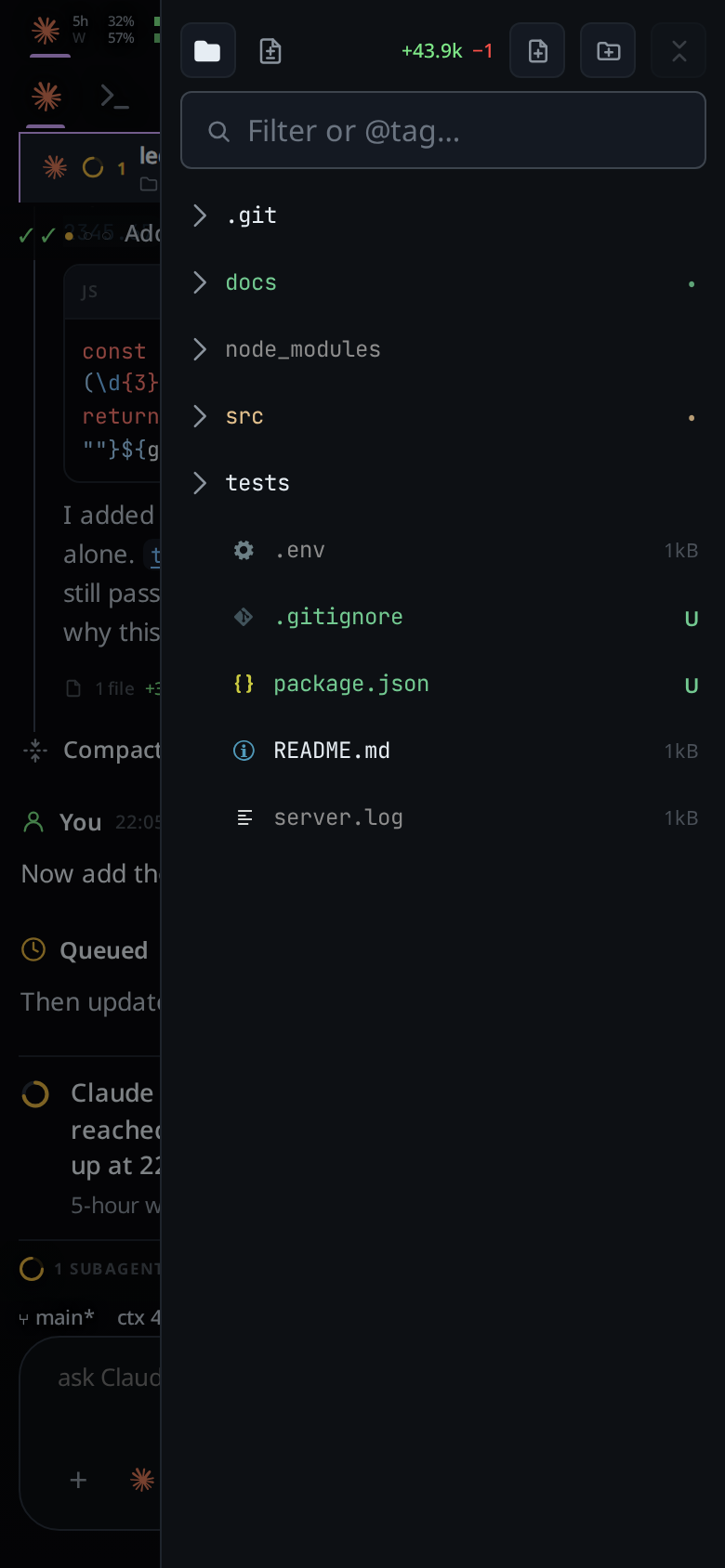
Tap a folder row. It expands in place under its own row; the chevron turns on the tap and
reading…shows under it until the listing lands.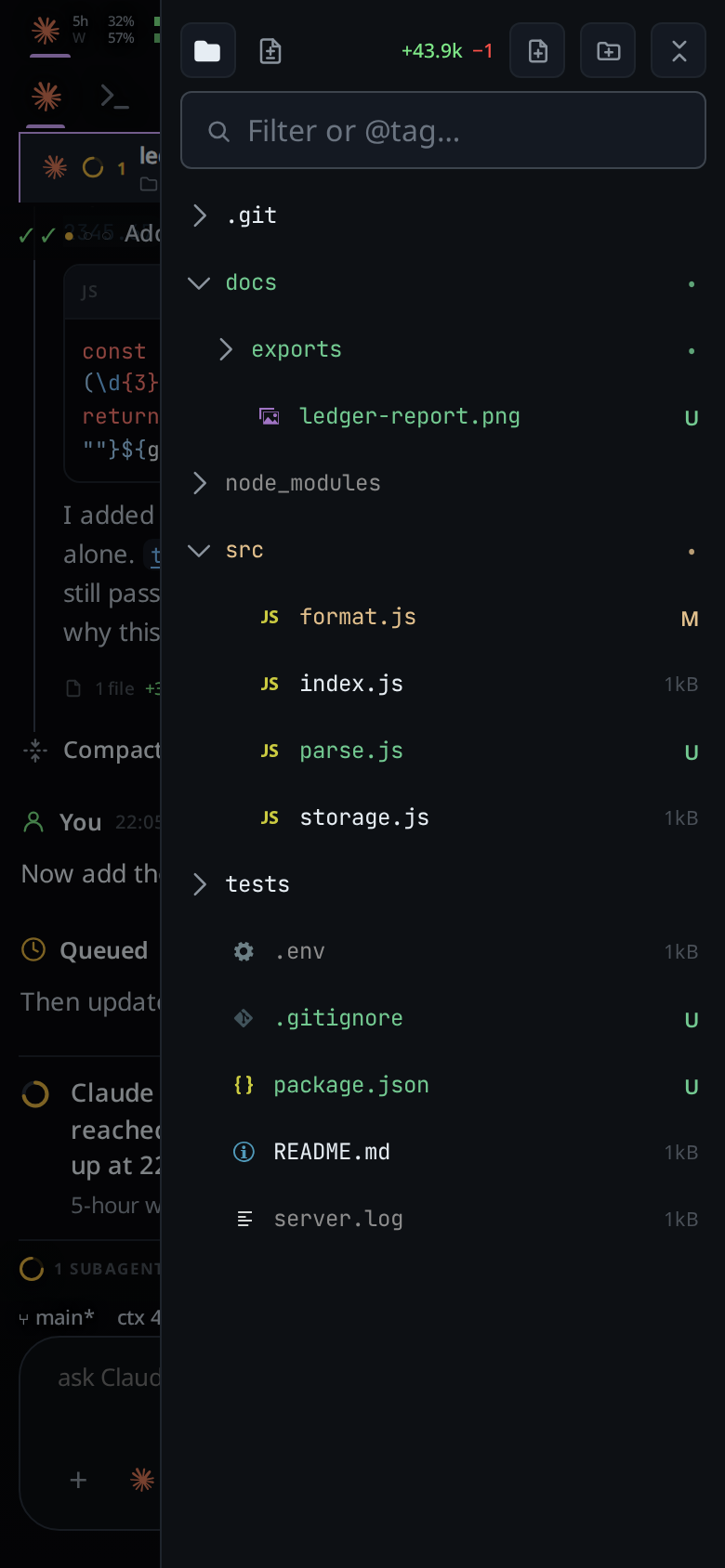
Tap the folder row again to close it. What it read is kept, so it reopens with no wait, and is read again behind it.
Tap a file row to open it in the viewer. On a wide window it opens as a tab in the focused pane instead, and Ctrl+click (Cmd+click on a Mac) opens it in the pane to the right; see file-tabs.
Right-click a row, or hold a finger on it, for New file, New folder, Rename, Edit @tags and Delete. Edit @tags is on file rows; enter names such as
@reviewor@docs, separated by spaces or commas. The New file (#explorer-new-file) and New folder (#explorer-new-folder) buttons in the head make one at the top. See manage-files.Tap the collapse button (
#explorer-collapse, "Collapse all") to shut every open folder at once. Nothing is re-read. With no folder open the button is dimmed and does nothing.On a wide screen, click the folder button (
#files-open) to hide the docked column and again to show it. The choice is remembered. With the column on Changes, the folder button adds the tree above the Changes list instead, so both show; see session-changes.On a phone or tablet, close the panel with the phone's back button, by tapping the scrim outside it, or by swiping it back to the right edge.
What you see
- The head has two tabs, Files (
#explorer-files-tab, a folder) and Changes (#explorer-changes-tab, a page with a plus and a minus). Docked as a column on a wide screen it has none: the titleFILESorCHANGES(#explorer-title) names the side on top, and the top bar's buttons switch the sides. Files is this tree; Changes lists the files this tab changed, see session-changes. The panel opens on Changes, then on the tab you left it on. The Files tab's title holds the whole path of the thread's folder; hover it on a desktop to see it. After the tabs is the total of what changed under the folder (#explorer-delta). - Folders sort before files, then by name, case ignored.
- The rows look like VS Code's explorer with its default Seti icon theme. A
folder is a thin chevron and its name, no icon; the chevron points right and
turns down when the folder is open. A file has an empty chevron column, then
its Seti icon in the icon's own colour:
{}in yellow for a.jsonfile,!in purple for YAML, a gear for.envand.env.*, a blueiforREADME.md, the Docker whale for aDockerfileor a compose file, a picture for an image. - A file row shows its size on the right. A changed file shows its letter there instead, and its name takes a colour: see explorer-change-counts. Folders show no size.
- A tagged file shows its first
@tagafter its name; the row tooltip lists all of its tags. Type@tagin the filter to find files carrying that tag. Tags are lowercased, 1–32 characters, and start with a letter or number; up to eight tags can be assigned to a file. They stay on this box, are shared across threads that open the same path, and follow Explorer renames. - A symlink row carries an arrow (
→). A link to a folder expands like a folder; a link to a file opens in the viewer. - A folder being read for the first time shows
reading…. An empty one showsempty. A folder that cannot be read shows the reason in place of its rows and the same message pops up as a toast. - The small bottom-left panel control hides the explorer. On a wide screen a slim rail stays where the column stood; clicking the rail or the folder button brings the column back, and the phone or tablet opens it as an overlay again.
- Each time you open the panel on the same folder it shows the rows it had at once, then reads the root and every open folder again. A file deleted since drops out of its folder when that read lands.
- A file deleted after its folder was listed still has a row until the next read. Tapping it toasts the server's error, "no such file or folder: <name>", and its folder is read again, so the row goes.
- After 500 entries a
Load morerow appears at the folder's own depth; tapping it appends the next page. - Dotfiles,
node_modulesand.gitare ordinary rows you can open. What git ignores is drawn grey. - On a phone a row is 36px tall for a thumb. On a wide screen it takes VS Code's sizes: 22px rows, 8px of indent a level, a 16px chevron column and a 16px icon column.
Limits and known gaps
- There is no upload, copy or drag and drop. Create, rename and delete are in the row menu; see manage-files.
- The root is the thread's folder. A path with
..in it, an absolute path, or a symlink that lands outside the folder is refused: "path escapes the folder". - A symlink is judged by where it resolves to, not by its name.
- A page is 500 entries. A folder with more is paged by
Load more. - Anything that is not a regular file or a folder (a FIFO, a socket, a device) is listed but refused when opened: "that is not a regular file".
- Two tabs on the same folder do not share a listing. Switching tabs, or changing a thread's folder, clears the panel and re-reads the root once you have stayed on the tab for 0.3 seconds. Flicking through several tabs reads only the one you stop on.
- Listings are never cached and never stored offline. With no connection the panel shows the failure and nothing else.
Related
- find-a-file: when the tree is too deep to walk
- file-viewer: what a file row opens
- file-tabs: a file row on a wide window opens a tab in a pane
- manage-files: the row menu: new, rename, delete
- explorer-change-counts: the letters and colours on changed and ignored rows
- session-changes: the explorer's other tab: the files this tab changed
- thread-working-folder: the folder the tree is rooted at
- wide-layout: where the panel becomes a docked column
- back-button: what back closes first