
Keep a workstation awake
VCode can stop a workstation from going to sleep, so your agents keep working and your phone can still reach it. You pick, per workstation: never, while agents work, or always.
Why you would use it
You start a long task from your phone and walk away. Without this, the workstation can fall asleep halfway through: the agent stops, and the phone shows the workstation as offline until someone wakes it.
How to use it
- Tap the cog (
#settings-open). - Find the Keep awake group (
#settings-awake). It has one row for each workstation on your account. - Pick a mode in that workstation's row: Off, While agents work or Always.
The group says
Savedwhen the workstation has it.
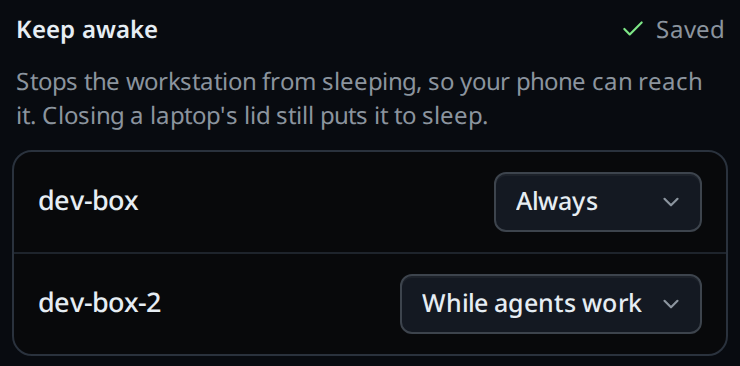
What you see
Each row shows the workstation's name and its mode. A note under the name shows only when something needs saying:
| Note | Meaning |
|---|---|
Cannot keep awake: <reason> |
The workstation tried and the system refused. The reason is the system's own message. |
Update this workstation to use it |
The workstation runs a VCode from before this setting. |
offline, or the connection message |
The app cannot reach the workstation. Its row is greyed out. |
The notes are read when you open settings, and after each change.
Options and settings
| Option | Default | What it changes |
|---|---|---|
| Off | The workstation sleeps as its own power settings say. | |
| While agents work | yes | Awake while any tab is running a turn, has messages queued, a subagent running or a background command, and for 10 minutes after the last one finishes. |
| Always | Awake for as long as VCode runs. |
Each workstation keeps its own mode. It is not part of the settings your workstations share: a laptop and a desktop on one account usually want different modes.
Limits and known gaps
- Closing a laptop's lid still puts it to sleep, on every system. Change the lid action in the system's own power settings if you want it to keep running closed.
- The screen still turns off and locks as usual. Only sleep is held off.
The exception is a Windows PC with Modern Standby (
powercfg /alistsStandby (S0 Low Power Idle), as most recent laptops do): there the screen turning off is what puts the PC to sleep, so VCode keeps the screen on while it holds the PC awake. - It acts the same on battery as on power. Always on a laptop keeps it awake until the battery runs out.
- It holds off sleep only while VCode runs. Stop VCode, or let it crash, and the workstation sleeps on its usual schedule again.
- On Linux the system can refuse a workstation with nobody logged in: some
distributions only let a signed-in user hold off sleep. The row then says
Cannot keep awake:with the system's message, and its control is disabled until the lock succeeds again. Turn off remains available to stop trying. VCode does not ask for a password to authorize the lock. - On a Linux desktop it is checked with GNOME and KDE. Another desktop that suspends on its own idle timer, such as Xfce, can still put the workstation to sleep on distributions with systemd older than 257 (Ubuntu 24.04, Debian 12). Set that desktop's own sleep timer to never there.
- In a box inside WSL, VCode needs WSL's Windows interop, which is on unless you turned it off.
Related
- synced-settings: the settings your workstations share, which this one is not
- use-the-app: reaching your workstations from the phone
- install-on-macos: the Mac's own sleep settings
- install-on-windows: what stops VCode on a Windows PC