
Zoom the window on a desktop
On a desktop you can make everything in the window bigger or smaller, from 67% to 200%, with the zoom control next to the bell or with the browser's own zoom keys.
Why you would use it
The app's type is sized for a phone. On a large monitor you may want it bigger, and on a small laptop smaller to fit two panes side by side. The installed app's window has no zoom menu of its own, so the control is the way to change it there.
How to use it
On a window at least 760px wide, find the zoom control (
#zoom) in the top row, between the bell and the folder: a magnifier with a minus, Zoom out (#zoom-out), the percentage (#zoom-level) and a magnifier with a plus, Zoom in (#zoom-in).
Click Zoom in to zoom in one step, or Zoom out to zoom out one step.
Or press Ctrl+plus, Ctrl+minus, or use Ctrl with the mouse wheel or a trackpad pinch. On a Mac it is ⌘ in place of Ctrl.
Click the percentage, or press Ctrl+0 (⌘0), to go back to 100%.
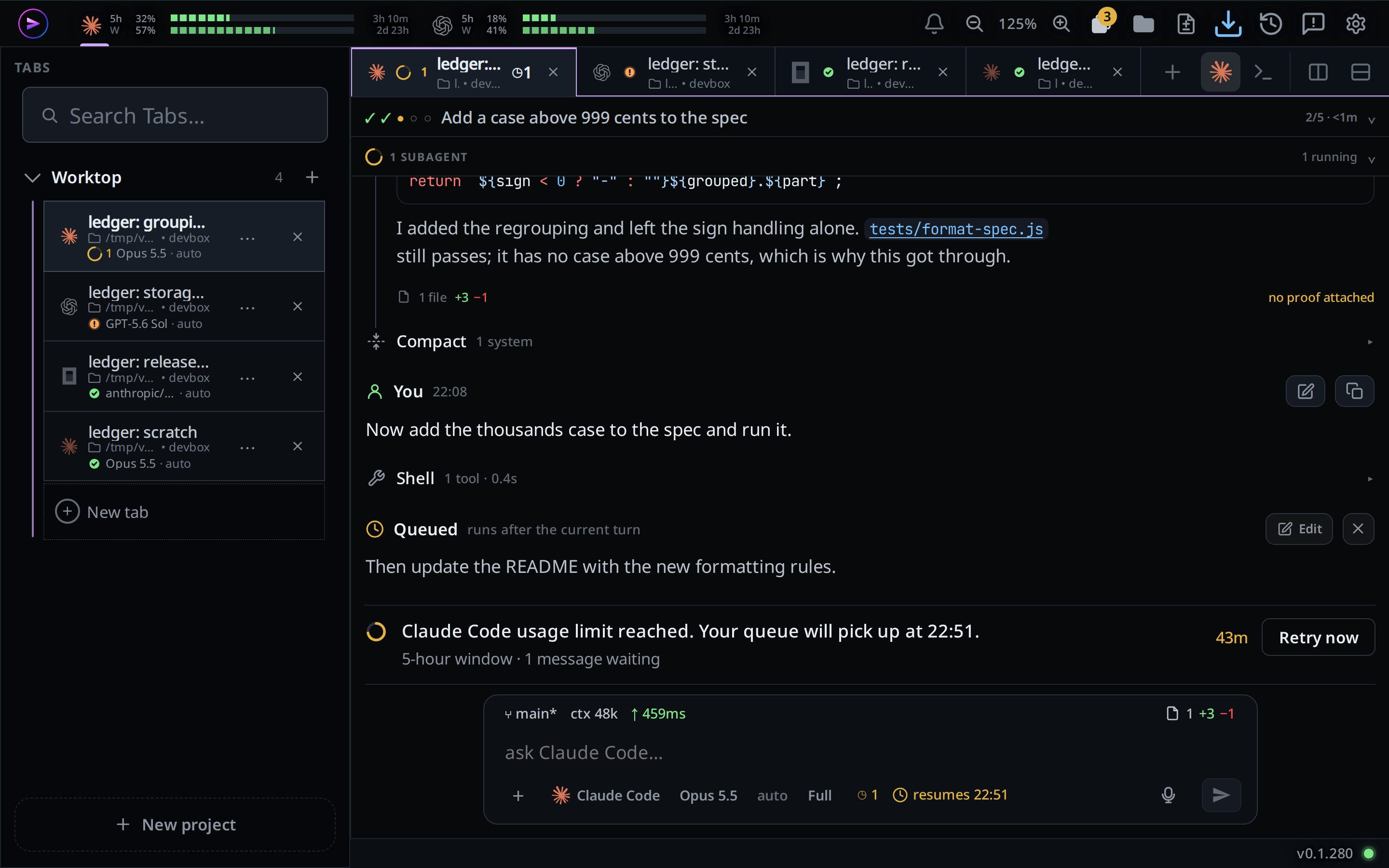
What you see
- The percentage changes with each step: 67%, 75%, 80%, 90%, 100%, 110%, 125%, 150%, 175% and 200%, the same steps as Chrome's zoom.
- The whole frame scales: tabs, transcript, composer, explorer and sheets.
- At 67% Zoom out is greyed out. Zoom in is greyed out at 200%, or sooner when the window has no room for the next step.
- The zoom you pick comes back when you reload or reopen the app in the same browser.
Options and settings
| Option | Default | What it changes |
|---|---|---|
| Zoom | 100% | The size of everything in the window, from 67% to 200% |
Limits and known gaps
- Desktop only. Below 760px wide the control is hidden, and the zoom keys and pinch go back to the browser.
- While the app has the focus, Ctrl+plus, Ctrl+minus, Ctrl+0 and Ctrl with the wheel change this zoom, not the browser's page zoom. The browser's menu still zooms the page.
- Over an open picture in the image viewer, Ctrl with the wheel zooms the picture, not the window.
- The zoom is kept per browser, not per account: each computer keeps its own.
- 90% is drawn as no zoom at all (the frame at 0.99 is shown at 1).
- Zooming in stops where the window has no room left for the desktop layout: 100% in a 760px window, 125% at 1080px, 175% at 1440px. Make the window narrower and the zoom steps down to fit; widen it again and the zoom you picked comes back.
- Zoomed in far enough, the explorer stops being a column and opens as a drawer, as it does in a narrower window.
- A page zoom the browser kept for the site from before is not reset by Ctrl+0 any more. Reset it from the browser menu.
- On a browser that cannot zoom the frame (Safari before 26.4) the control is hidden once a zoom fails to hold.
Related
- wide-layout: the desktop layout this zooms
- split-panes: zooming out leaves more room for panes