
Comment on selected text
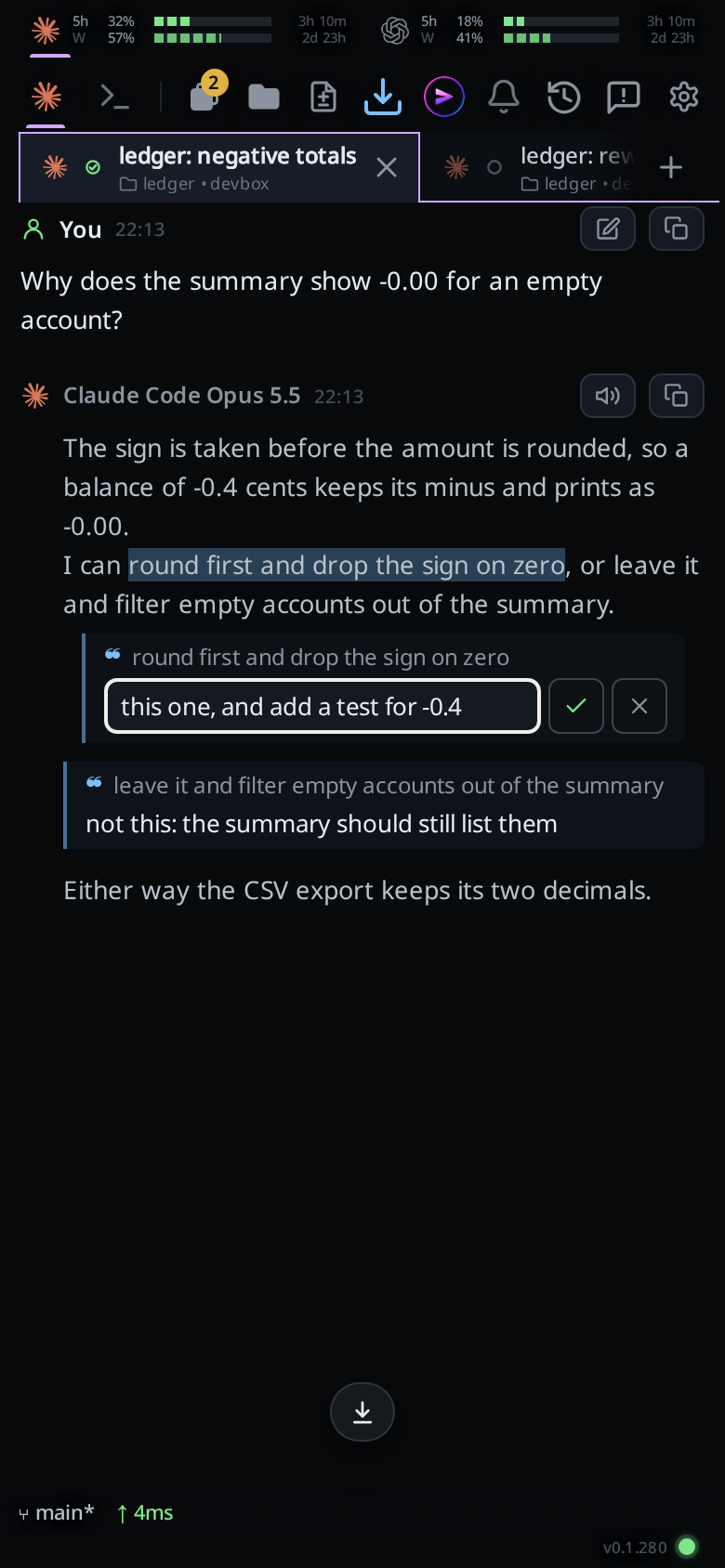
Select words anywhere in the transcript and a bar appears under them: Copy, Select all and Comment. Comment puts a small pill for the words inside the message box and opens a comment box right under the paragraph or list item they came from. When you send, the agent gets each cited passage as a quote with your comment under it, then what you typed.
Why you would use it
The agent offered two options in one paragraph and you want one of them, or one sentence in a long answer is wrong. Pointing at the words is quicker than retyping them, and the agent gets the exact text you mean.
How to use it
Select text in the transcript: press and hold on a word on a phone, then drag the handles; drag with the mouse on a desktop. It can be in a reply, your own message, the agent's thinking or a tool's output.
The bar (
#cite-bar) appears under the selection. When there is no room under it, as for words just above the message box, it appears above them, so it never covers the message box, its cite pills or the tabs.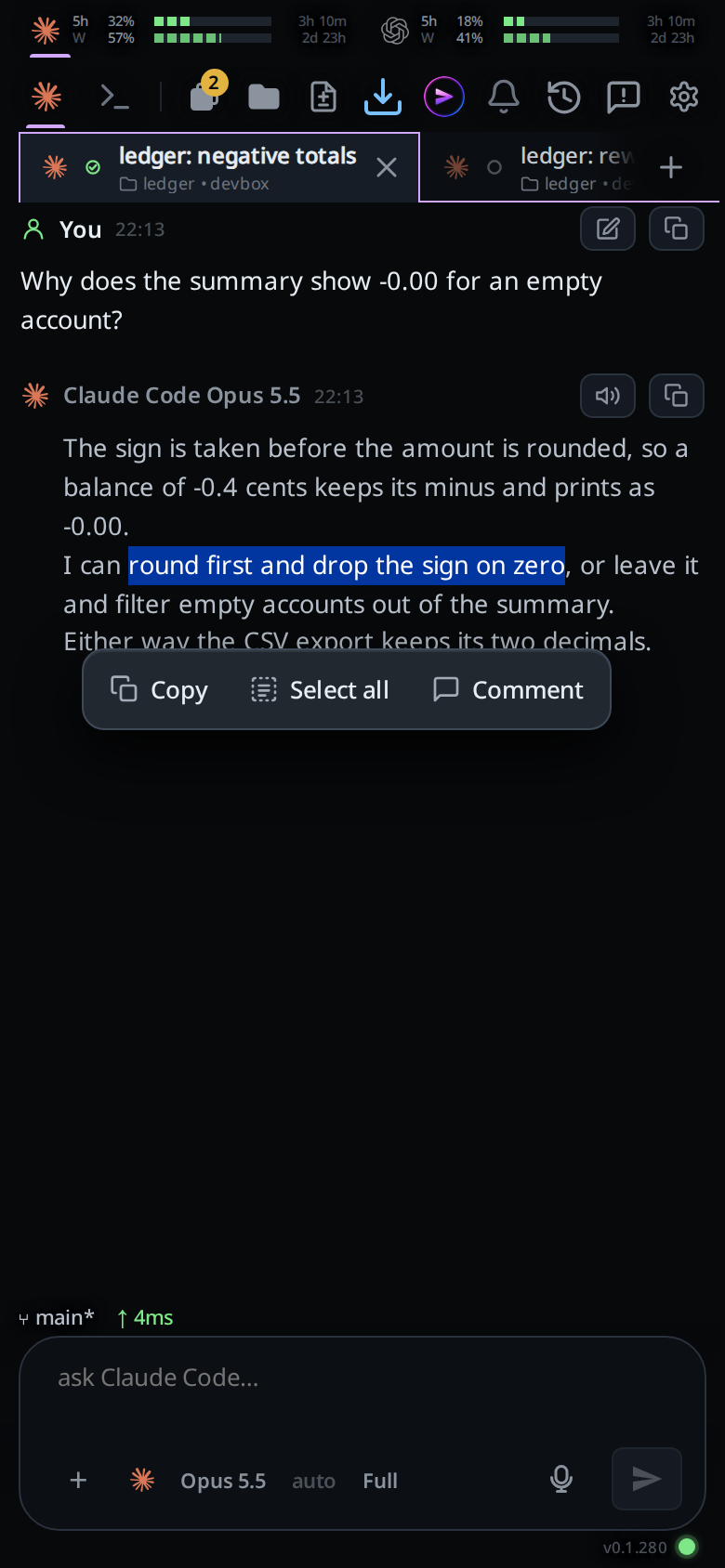
Tap Comment. A pill with ❝ and the start of the words appears in a row at the top of the message box. On a desktop, hover over it to see where the words came from (
reply,your message,thinking, or the tool's name andoutput, such asBash output). A one-line comment box opens right under the paragraph, list item or code block your selection ends in, with the placeholdercomment on this…. The message box hides while you type in it. The words you selected stay marked while the box is open.Type your comment on those words and tap ✓, or press Enter. The box becomes a comment card in the same place: the cited words on one line, then your comment. The message box comes back with the cursor in it, so pressing Enter again, or tapping send, sends the message. Tapping anywhere outside the box, or the phone's back button, saves it and closes it too.
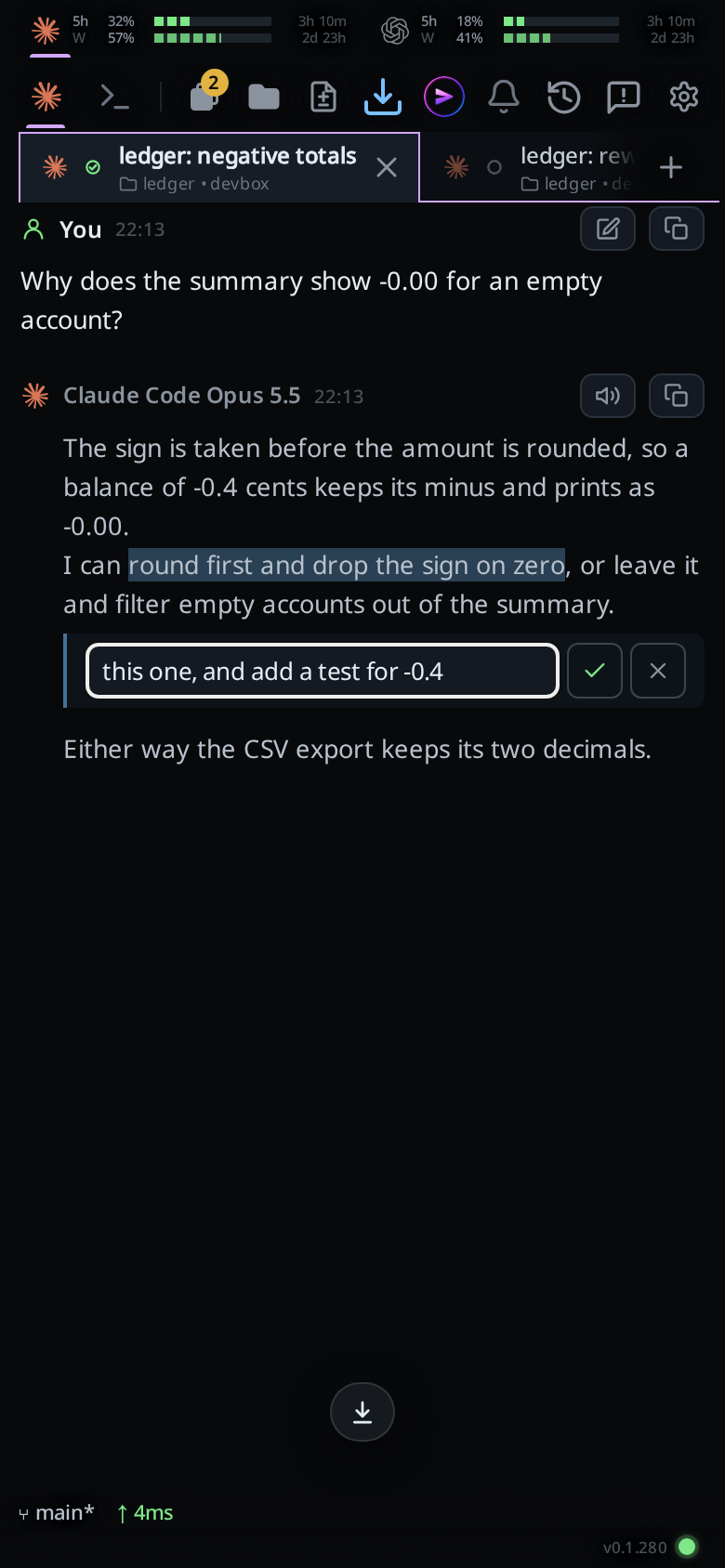
Tap a comment card to reword it, or tap the pencil on its pill. The pencil turns blue once the cite has a comment. ✕ in the box drops the cite, pill and all.
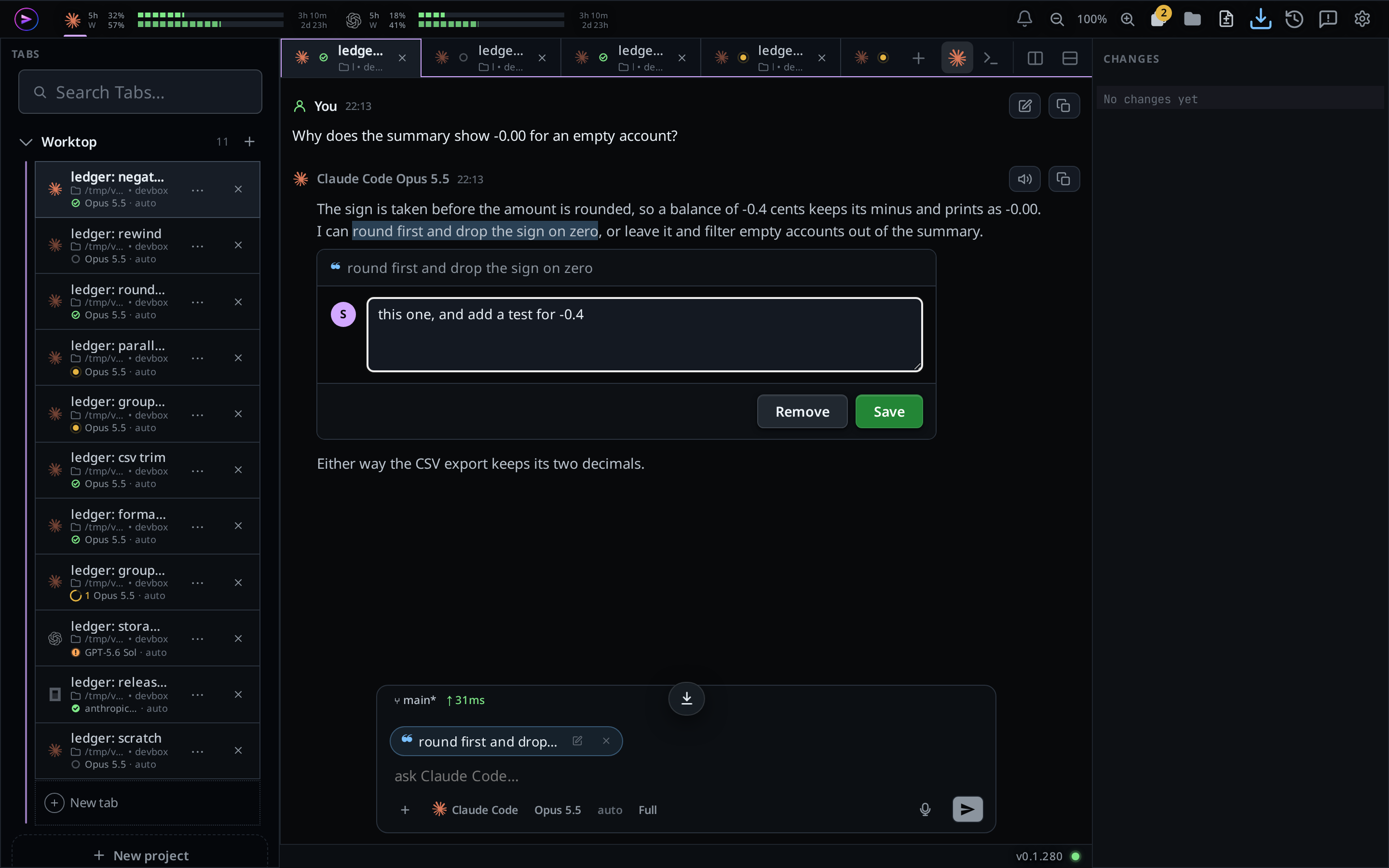
On a desktop the box has more room: the cited words on top, a three-line field beside your initial, and Remove and Save under it. The message box stays in view while you type.
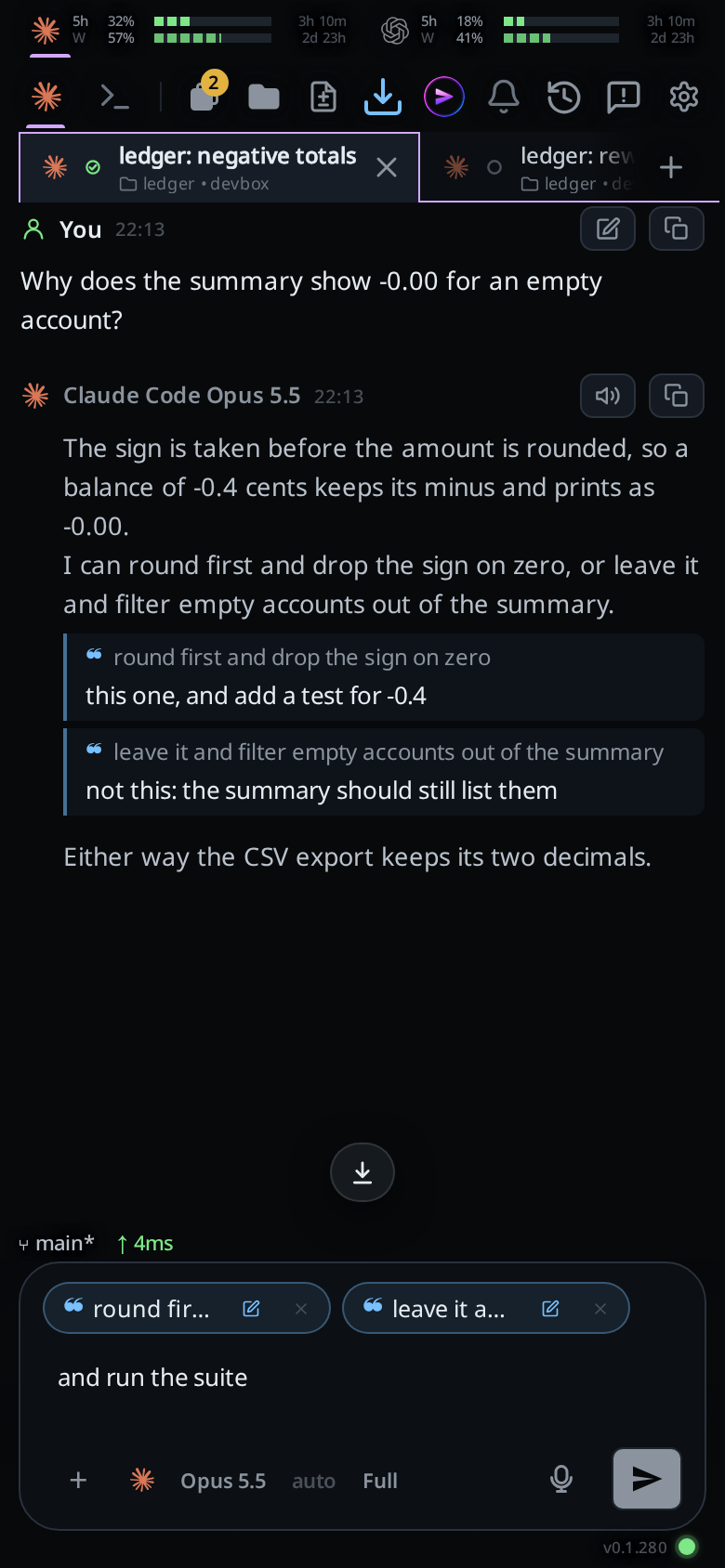
Tap Comment again to add more passages, each with its own comment; the pills scroll sideways. Type anything else in the message box, and send the usual way. A cite on its own, with no comment and nothing typed, is a message too.
When the cited card is not on screen, folded into a group of steps or too far up, the pencil opens the box just above the message box, with the cited words on top of it.
Tap a pill's × to drop it before you send. Its comment card goes with it, and the row goes when the last pill does.
Copy puts the selected words on the clipboard. Select all grows the selection to the whole card it is in, so you can then comment on all of it.
What you see
- The bar sits under the selection and follows it as you scroll. On a touch screen it sits below the selection handles, so a tap on Select all does not land on a handle. With no room under it, it goes above. It goes away when the selection does, and after Copy or Comment.
- The pills and their comments belong to the tab you cited in, like attachments: swipe to another tab and back and they are still there. Sending empties them.
- A cite with no comment has no card under the text, only its pill. Saving an empty box leaves the pill; tap it to add a comment later.
- The box stays on screen while you type in it, even with the keyboard up and the agent still writing.
- Leaving the box without tapping ✓ keeps what you typed: a tap outside it, back, Escape and a swipe to another tab all save and close it. A drag that scrolls the transcript leaves it open.
- Citing words in a card cut short with a fade opens the card, so the comment under them shows.
- Shift+Enter starts a new line in the comment; the box grows up to about six lines, then scrolls.
- Copy shows a toast:
selection copied, orcopy blocked by the browserwhen the browser refuses. - Comment in a pane with no thread shows
open a new thread in this pane first.
The message the agent receives for two commented cites and a line typed in the message box:
> round first and drop the sign on zero
this one, and add a test for -0.4

> leave it and filter empty accounts out of the summary
not this: the summary should still list them

and run the suite
Limits and known gaps
- A selection that runs from one transcript into another pane, or into a text field, gets no bar.
- A cite is cut at 1500 characters, with
…on the end. - The pills and comments are held on this device until you send. A reload drops them, as it drops attachments that are waiting.
- The comment card shows only while its card is drawn: a card folded into a group of steps, or above the part of the transcript on screen, hides it. Its pill still opens the box, above the message box.
- Words cited from a pane other than the one the message box serves get a pill; their comment box opens above the message box.
- A card the agent is still writing redraws as words arrive, which can clear a selection in it.
- The phone's own menu (Copy, Share and so on) still appears above the selection; the bar is below it so the two do not cover each other.
- On Android, Chrome's Touch to Search can still open Google's search sheet at the bottom after a long press. Turn it off in Chrome: Settings, Google services, Touch to Search.
Related
- copy-from-the-transcript: copy a whole card with one tap
- attach-photos-and-files: files wait above the box the same way
- comment-on-a-line: comment on a line of a file instead
- send-a-message: where the cites go when you send
- read-the-transcript: the cards you select in