
Find and replace in a file
Search the file open in the editor, step through the matches, and replace one or all of them. It works the way VS Code's find widget does.
Why you would use it
You want to see every place the agent used a name, jump to the one you need, or rename it across the file without asking the agent for a turn.
How to use it
Open a text file in the editor.
Tap the magnifier in the viewer header (
#viewer-find), or press Ctrl+F (Cmd+F on a Mac). Text you selected first fills the field.Type what to find. The count beside the field reads
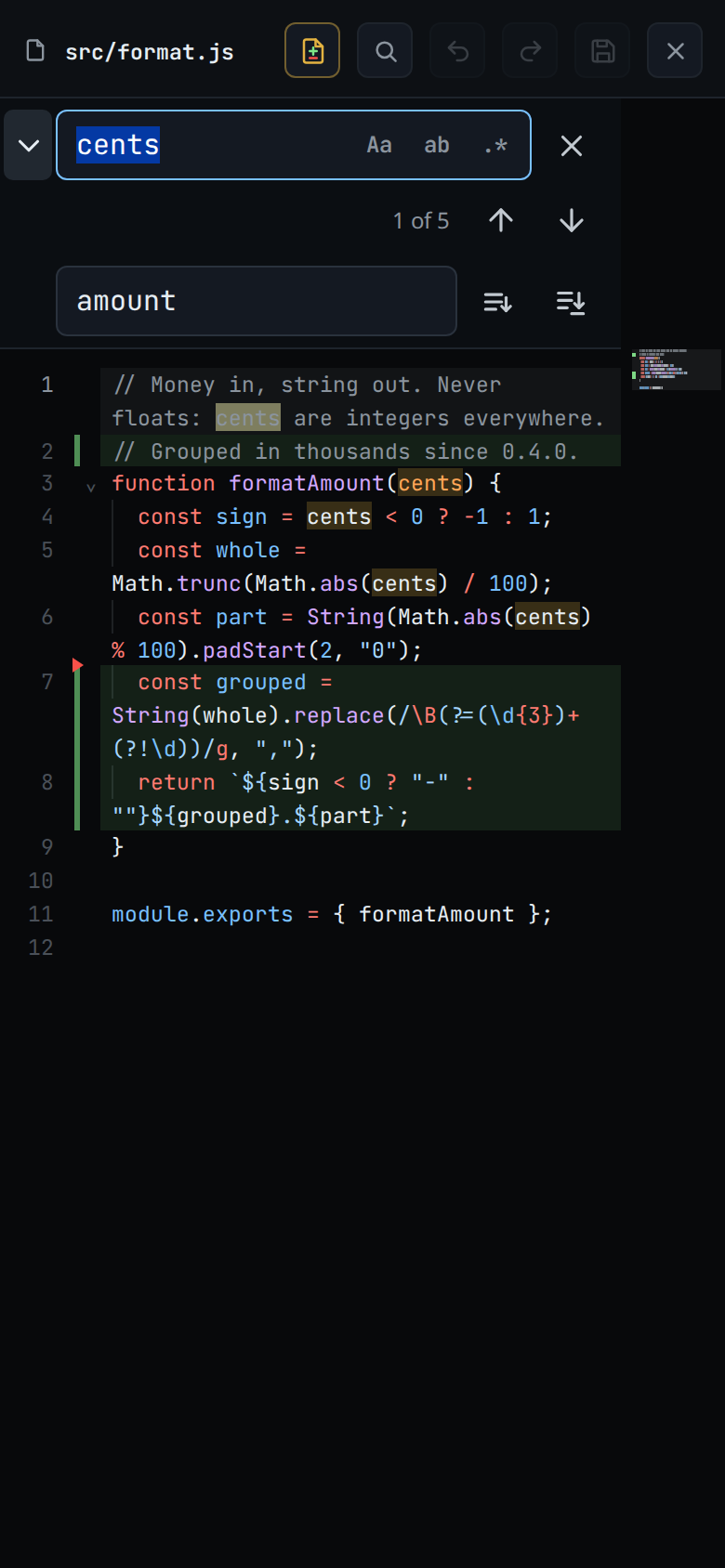
1 of 6, or? of 6while the cursor is on no match.Tap the down arrow or press Enter for the next match. Tap the up arrow or press Shift+Enter for the one before.
To replace, tap the chevron on the left, or press Ctrl+H (Cmd+Alt+F on a Mac). Type the new text, then tap Replace for the current match or Replace all for every match. Enter in the replace field replaces one match.
Tap the close button, press Escape or tap the magnifier again to close it.
What you see
On a phone the widget is a bar under the viewer header, and the text moves down to make room. The first row holds the field and close. The second holds the count and the arrows.
On a wide screen it floats at the top right of the editor, as in VS Code. The editor scrolls each match clear of it.
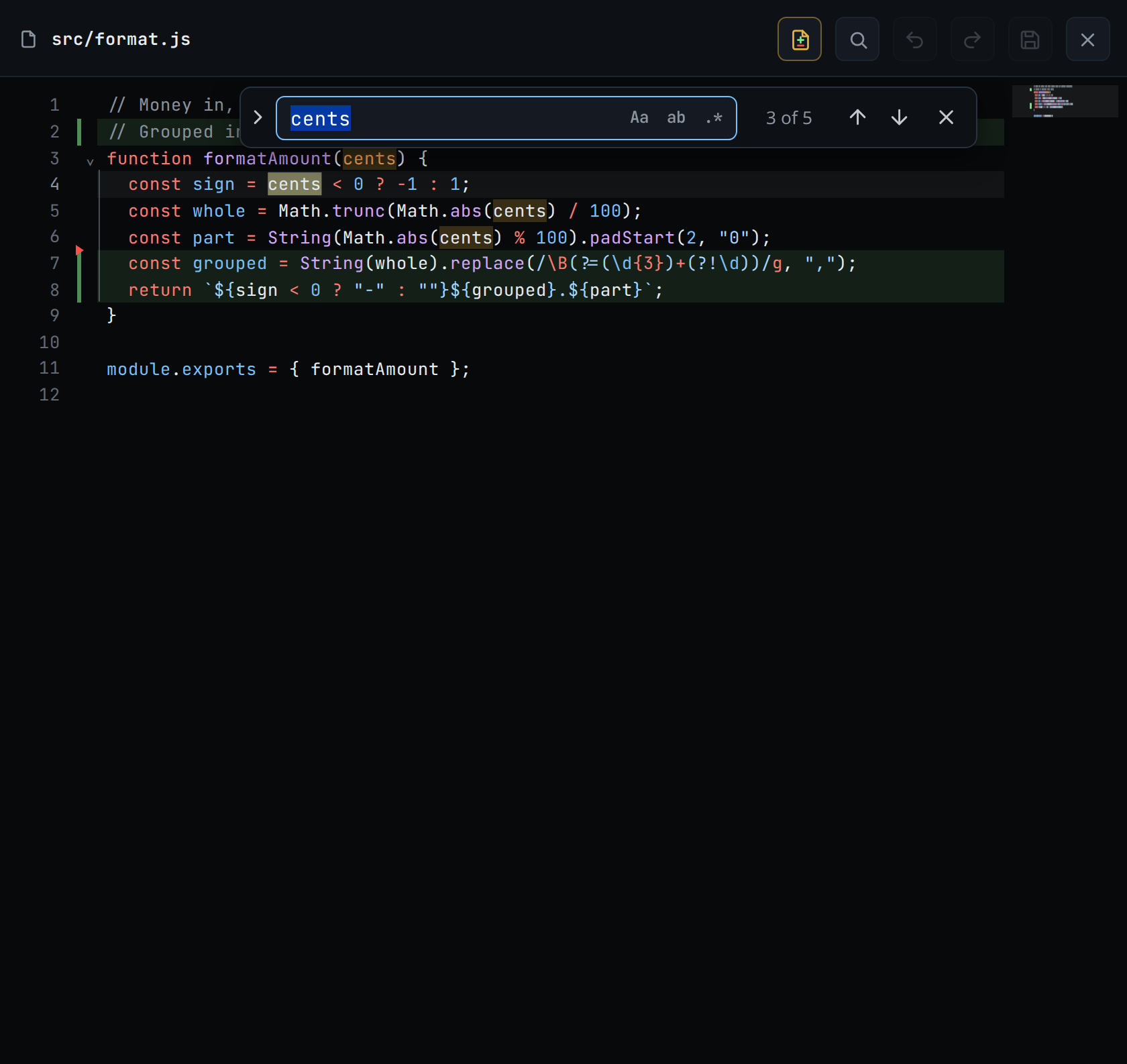
Every match is highlighted in the file, and the current one is brighter.
The three toggles inside the field are Match case (
Aa), Match whole word (ab) and Use regular expression (.*). Alt+C, Alt+W and Alt+R switch them.With no match the count reads
No resultsand the field turns red. A regular expression that does not parse turns it red too.
Limits and known gaps
- Only the editor has it. The read view, the diff sheet and the transcript have no find widget.
- There is no Find in selection and no Preserve case.
- The count stops at 1000 and then reads, for example,
3 of 1000+. - Replace all is one edit, so one undo puts every match back.
Related
- edit-a-file: the editor the widget belongs to
- find-a-file: find a file by its name instead
- file-viewer: the sheet the editor opens in
- diff-review-sheet: the same find bar over a diff