
Preview a web page from your computer
A dev server running on your computer, or an HTML file in your project, opens as a page you can use. On a wide window it is a tab in a pane, beside the thread that is changing it. On a phone it opens in the phone's own browser.
Why you would use it
The agent is building a page and you want to see it, click through it and watch it change, without a tunnel of your own or a second machine on the same network. The page loads at a private https address that only your own devices on your VCode account can open.
How to use it
Your computer must be linked to your VCode account and have its preview certificate.
Ask the agent to show you the page. It starts the server if it is not running and runs
v-code preview 5173. On a wide window the page opens in a new pane to the right of the one you are in, or below it when no pane fits across, and your cursor stays where it was. A second page joins that pane while it holds only previews. With no room for another pane, the tab waits behind the focused pane and the toastlocalhost:5173/ is readyshows with a Show button for 30 seconds. The tab carries a globe andlocalhost:5173, and the full address as its tooltip (localhost:5173/).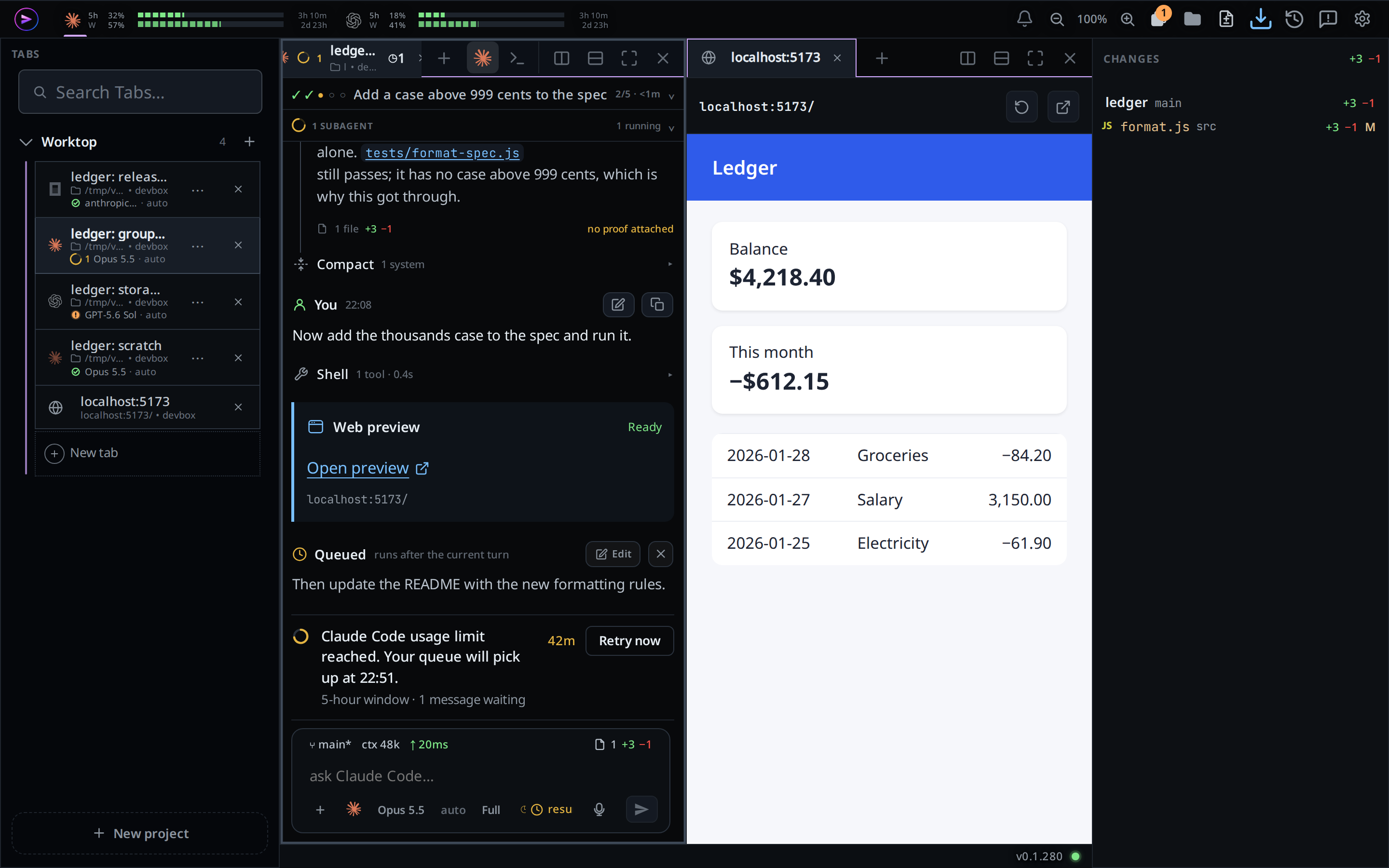
Use the page in the pane. Reload (the arrow) loads it again; Open in browser (the arrow out of a box) opens the same page in a browser tab of its own.
An HTML file open in the file viewer has a Preview button (the globe,
#viewer-preview) in its head. Click it and the file opens as a page in front, served from its folder with the files beside it.Close a preview tab with its ×, a middle click, or Ctrl+W (⌘W on a Mac). Closing the last preview tab for a port closes the port.
On a phone, the viewer's Preview button opens the page in a new browser tab.
When an agent runs v-code preview on a phone, the toast
localhost:5173/ is ready shows with an Open preview button for 30 seconds;
tap it to open the page in a new browser tab.
The completed command also keeps a Web preview card in the asking thread's transcript, with a blue accent, Ready label, Open preview link and the localhost address underneath. It stays available after the toast disappears and after a reload. Tap the link to open the same port and path on that thread's computer: in a pane on a wide screen, or a browser tab on a phone. You can copy the link or open it in a new tab; it carries no expiring access ticket. Each opening gets fresh access. The server must still be running.
The command prints a Markdown Open preview link for the agent to paste into its reply. Tapping it inside VCode gets fresh access to the named computer, port and path: in a browser tab on a phone, or a pane in the current window on a wide screen. Opening the link from elsewhere first opens VCode; on a phone that window then goes to the preview page. If you need to sign in, VCode keeps the destination for 15 minutes while you do so. The link remains usable after the toast disappears.
What you see
- A preview tab sits with the file tabs, after the thread tabs, and drags between panes and splits like them.
- The pane's head reads the address,
localhost:5173/. - While the page is asked for, the pane reads
opening…. If your computer refuses, the pane readslocalhost:5173 could not be shown: <reason>, for examplepreviews are not ready on this box. - A browser that blocks the new window shows the toast
the browser blocked the new window. - Preview tabs are kept on this device with the pane layout, per project. Each time a preview tab comes back in front, its page loads afresh.
- A preview tab whose port your computer no longer has open (after VCode
restarts, or when another device closed it) opens the port again and loads.
If nothing listens there any more, the pane reads
localhost:5173 could not be shown: nothing is listening on port 5173.
Limits and known gaps
- Beta. Your computer needs its preview certificate first; on a computer that
has none, the file viewer shows no Preview button and
v-code previewfails. - Preview tabs are desktop only. On a phone, previews open in the browser, from the file viewer or from an agent's Open preview button.
- No screen lists the ports to pick one yourself: an agent opens a preview, or the file viewer does for an HTML file.
- Only your own devices on your VCode account open the page. Sharing a preview with someone else is not possible.
- A preview shows whatever listens on the port. When an agent's server fails
to start because another program holds the port, the tab shows that
program's page; the agent's row
port <port> opened for previews, served by <command> in <folder>names it. Only Linux names the program. - A port stays open until its last preview tab closes,
v-code preview --closecloses it, or VCode restarts. A tab still open after a restart opens it again. - VCode's own ports cannot be previewed.
- Inside a pane, the page keeps its login in a frame. Safari before 26.2 does not keep it there; use Open in browser.
Related
- file-tabs: the file tabs preview tabs sit beside
- split-panes: the panes preview tabs live in
- agent-commands:
v-code previewfrom an agent - what-the-agent-is-told: every agent is told to show a page with
v-code preview - file-viewer: the viewer whose Preview opens an HTML file