
Open or download an attachment
Files you sent with a message stay on the message. Tapping one opens it: an image full size inside the app, a video in the app's player, anything else as a download.
Why you would use it
You photographed a screen three days ago and want to look at it again, or you want the PDF you attached on your laptop instead of your phone. The attachment belongs to the message, so it is where you left it.
How to use it
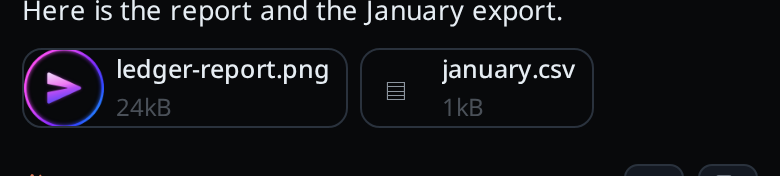
Scroll to the message the file was sent with. Its attachments are chips under the message text.
Tap an image chip. It opens full size in the app; back closes it and leaves you where you were. The share button in its header (
#shotview-share) sends it to another app, as for a picture the agent showed. Pinch, Ctrl with the mouse wheel or a double-click zooms it, as for a screenshot. Swipe left or right, or press the arrow keys, to step through the thread's other pictures; the header shows where you are, such as2 / 5.
Tap a video chip (
.mp4,.m4v,.mov,.webm,.mkvor.ogv). It plays in a player over the thread (#playview), titled with the file's name, with the browser's own controls. It is the file viewer's player: the video streams from your workstation, so you can seek before it has all arrived. When the browser cannot play the file, you seeThis browser cannot play <EXT> videos; a file that fails to load for another reason showsCould not load this video. Nothing is converted. Back or the close button (#playview-close) stops the video and closes the player.Tap any other chip. The browser opens it in a new tab, which for most types is a download.
What you see
- An image chip shows a thumbnail; anything else shows a glyph (
▣for an image,▶for a video,▤otherwise). - Each chip shows the file name and its size.
- A file still on the device, not yet uploaded, says
· on deviceafter the size. - A queued message shows its attachments too, so you can see what is waiting.
Options and settings
| Option | Default | What it changes |
|---|
Limits and known gaps
- An attachment lives beside its thread's log. Deleting the thread takes its attachments with it.
- Only
image/png,image/jpeg,image/gif,image/webp,text/plainandapplication/pdfare shown inline, and videos play in the player. Everything else (HTML, SVG, JavaScript, anything unknown) is served as an opaque download, so an uploaded file can never run as active content on the app's origin. - The maximum upload is 100 MB unless
VCODE_MAX_ATTACHMENT_BYTESsets another; see Attach photos and files. image/heicis stored and downloadable, but the models reject it, so it is handed to the agent as a path rather than as an image.- There is no download for a file from the explorer. Only attachments and images can be fetched as bytes; the explorer's raw route serves images only.
- Anyone who can log in can read any attachment on the box.
- A video is told by its name's extension, else by the type it was sent with.
A
.avior.wmvfile is a download. - Just after the app is first opened, a video may show
Reload the app to play videos; reload once and tap it again.
Related
- attach-photos-and-files: putting a file on a message
- inline-screenshots: images the agent puts in the transcript
- file-viewer: the other place an image opens in the app, and the player a video attachment uses
- thread-state-on-disk: where the bytes are kept
- turn-changes: the other thing a message can carry