
Edit the command line with taps
At a prompt in Shell mode, the line you are typing behaves like a text field: tap to put the caret anywhere in it, select a word and type over it, paste. What you type shows at once, and the shell's own line follows. This is for touch screens: on a computer with a mouse or trackpad the terminal takes keys as VS Code's does, and the line is the shell's own.
Why you would use it
A terminal on a phone usually takes keys one at a time. A typo near the start of a long command means pressing ← twenty times, and the phone's selection handles, cut and paste do nothing. Here the phone's own editing works on the command line.
How to use it
In Shell mode, tap the line after the prompt. The keyboard comes up with the caret where you tapped. A tap anywhere else on the terminal brings it up in the line as well.
Tap anywhere else in the line to move the caret there. Drag, or use the phone's selection handles, to select.
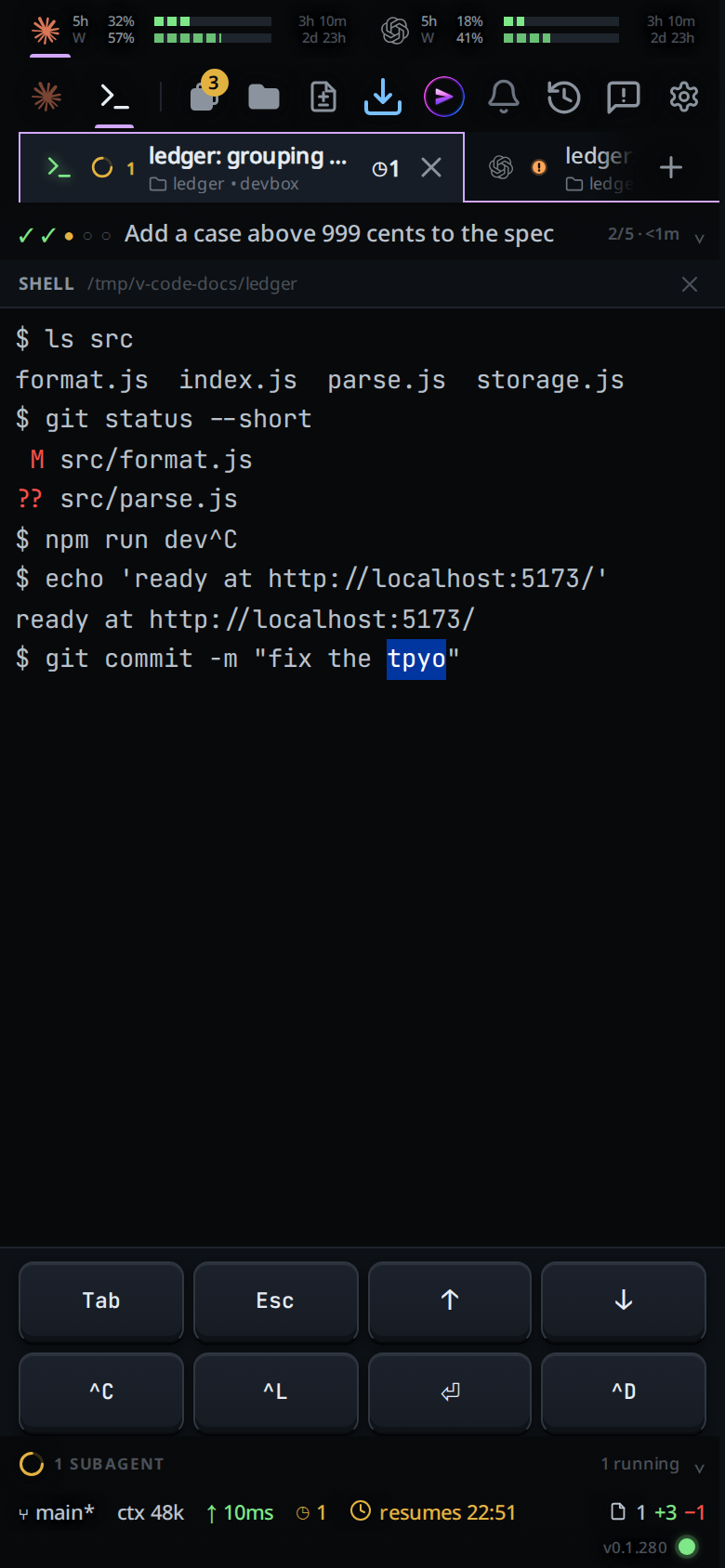
Type to replace the selection, or press Backspace to delete it. Paste works the same way: from the phone's paste button, or Ctrl+V (Cmd+V on a Mac) on a tablet's keyboard.
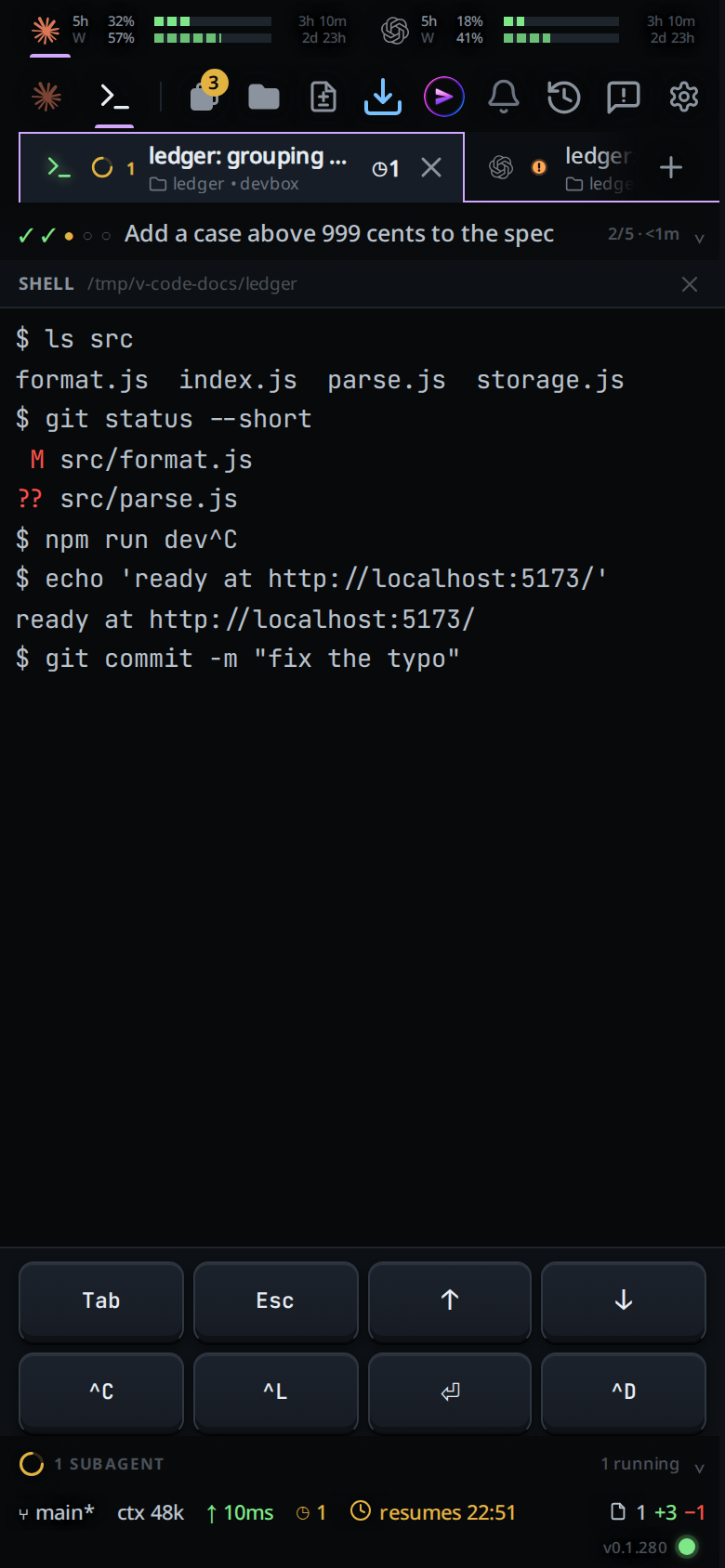
Press Enter, or the keypad's ⏎, to run the line. A phone keyboard shows its send key in Enter's place.
Press ↑ on the keypad or a keyboard for the shell's history, or Tab to complete. The line fills with what the shell put there, and you can edit it the same way.
What you see
- The prompt stays as the shell drew it. The field covers only the cells after it, in the terminal's own font, and grows a row at a time as the line wraps.
- While the shell has not caught up with what you typed, the text in the field keeps its full colour and is underlined with grey dots. The dots go once the shell's line matches.
- After ↑, Tab completion or
^R, the shell's line replaces the field's text a moment after the shell stops printing. - When a command is running, or a full-screen program is open, there is no field: your keys go straight to the program.
Limits and known gaps
- It needs bash or zsh. With fish,
sh, or any other shell, keys still go to the shell one at a time, as in any terminal app: use the arrows to move. - It needs a shell window opened by this version. A tab whose shell was open
before the update keeps that plain shell until it exits; type
exitand the tab's next shell has it. - A pasted line break or tab becomes a space, and other control characters are dropped, so a paste never runs a command or triggers completion by itself. Press Enter to run it.
- The second line of a multi-line command (after a trailing
\or an open quote) has no field; it is typed key by key. - Scrolled up into the output, the field hides until you are back at the bottom.
- Enter, Tab, Shift+Tab, Esc, ↑, ↓ and Ctrl with a letter go to the shell as
keys; the field does not edit with them. Ctrl+C with text selected copies
instead of sending
^C. - The field is a guess at the shell's line until the shell answers. A shell key binding that rewrites the line in a way the field cannot see is corrected when the shell's line is read back.
Related
- shell-mode: the terminal this line sits in
- shell-keys: ↑, Tab and
^Cfrom the keypad - agent-or-shell-mode: switching into Shell mode