
Run shell commands in the tab
Switch the tab from the agent to a terminal. It is a real shell on the machine, in this tab's folder, and it fills the screen where the transcript was. You type into it directly, as you would in a terminal app.
Why you would use it
You are on a phone and you want to run git status, start a dev server, read a
build's output, or open vim or htop for a minute. You want it in the tab's
own folder, without asking an agent to do it and hoping it does.
How to use it
Tap Shell in the strip at the top (
#send-modes, the chip with the>_mark). The transcript is replaced by the tab's terminal (#panel), and the composer goes away: in Shell mode you type into the terminal itself. On a wide screen the terminal button in each pane's header switches that pane the same way: see terminal-split.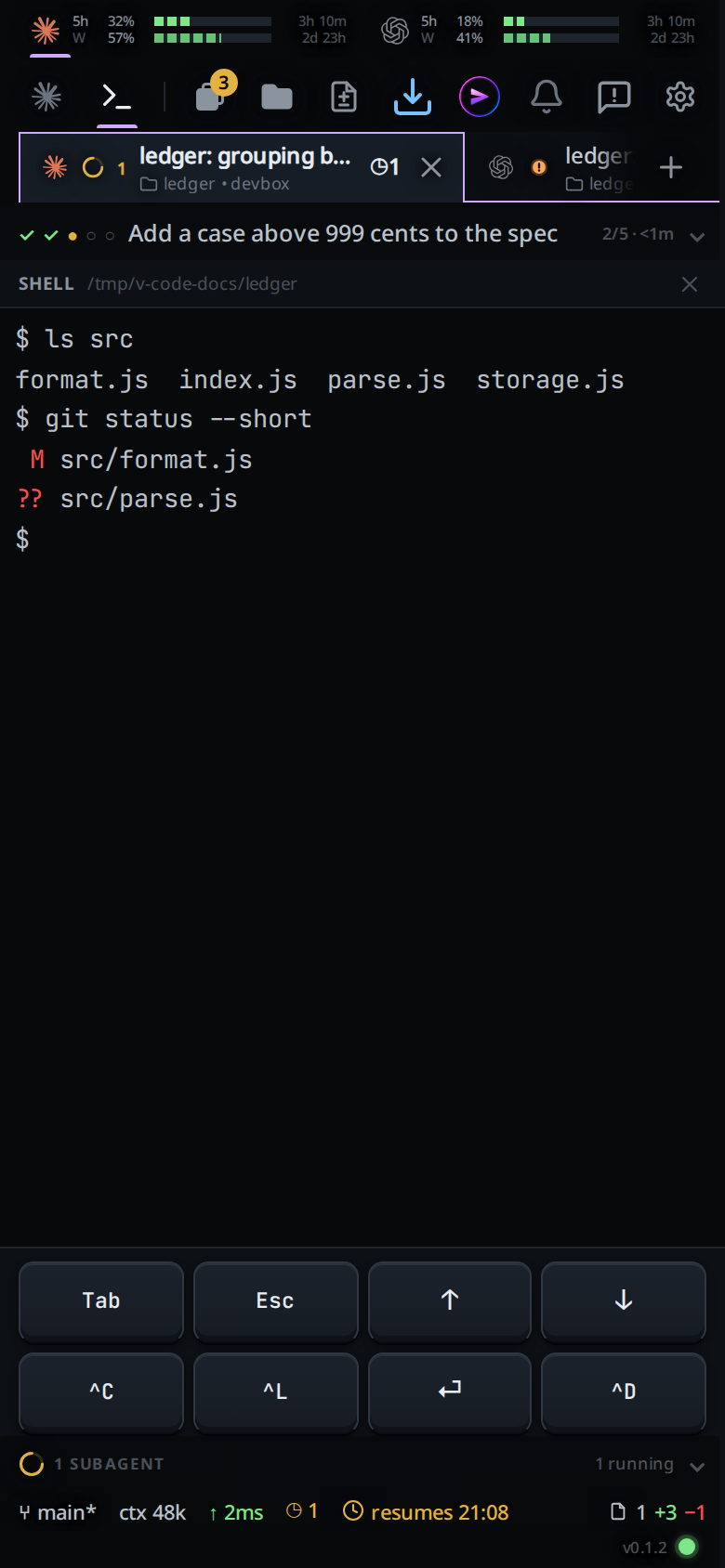
Tap the terminal to bring up the keyboard, then type a command and press Enter. On a phone or tablet, at a prompt you can tap inside the line to move the caret, select a word and type over it, or paste; see edit-the-command-line. On a computer with a mouse or trackpad the terminal works as VS Code's does: it takes the keyboard as soon as it opens, every key goes to the shell, and Alt-click (Option-click on a Mac) on the line moves the shell's cursor there.
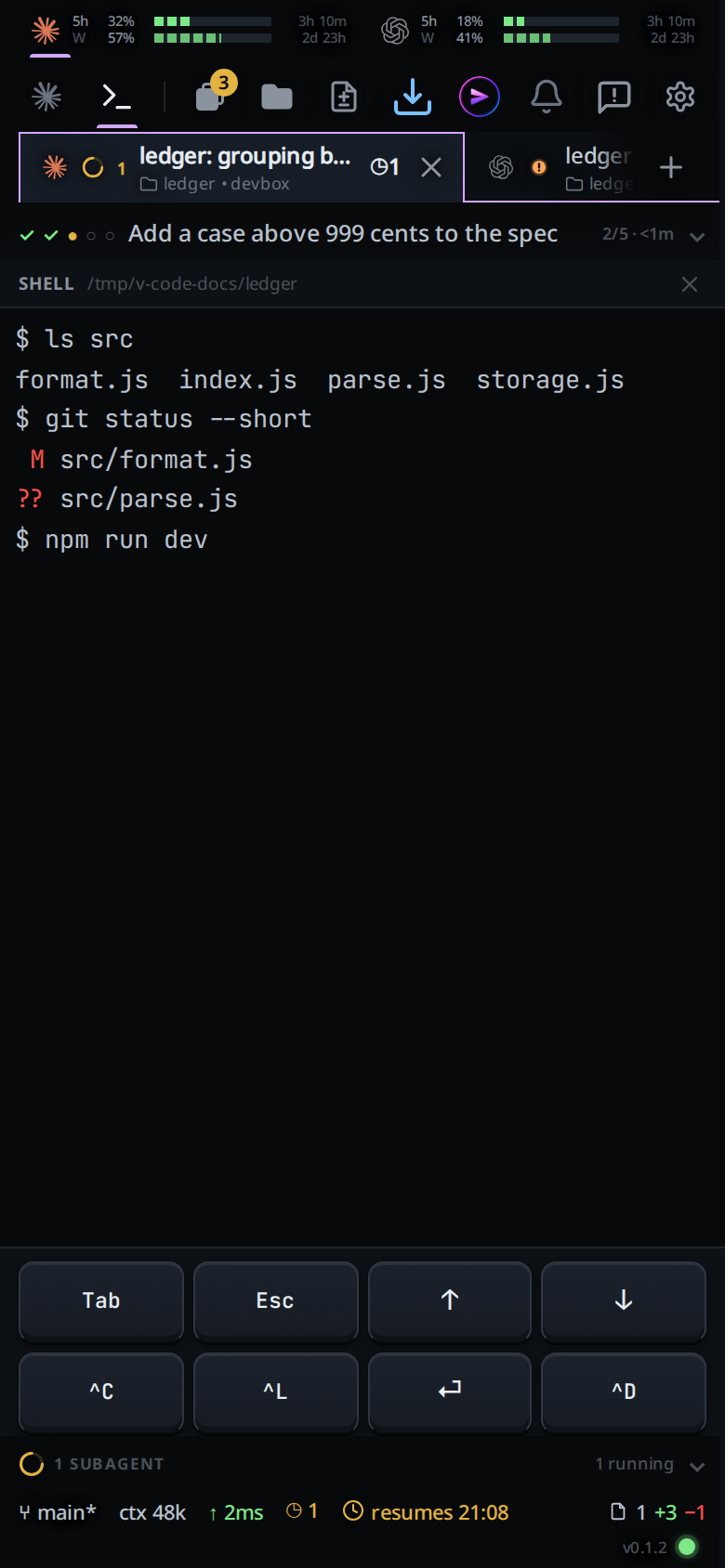
Read the output as it arrives. Scroll up with a finger or the wheel for earlier lines.
On a touch screen the two-row keypad stays open in the bottom band. Tap a key for
Tab,Esc, the arrows or^C.To copy on a phone, hold a finger still on the terminal, outside the line you are typing, for half a second. A sheet opens with the output as plain text (
#term-copy); select with the phone's own handles, or tap Copy all (#term-copy-all). On a desktop, select with the mouse and press Ctrl+C or Ctrl+Shift+C (Cmd+C on a Mac); with nothing selected Ctrl+C is^C. Paste with Ctrl+V or Ctrl+Shift+V (Cmd+V), or right-click for the browser's menu.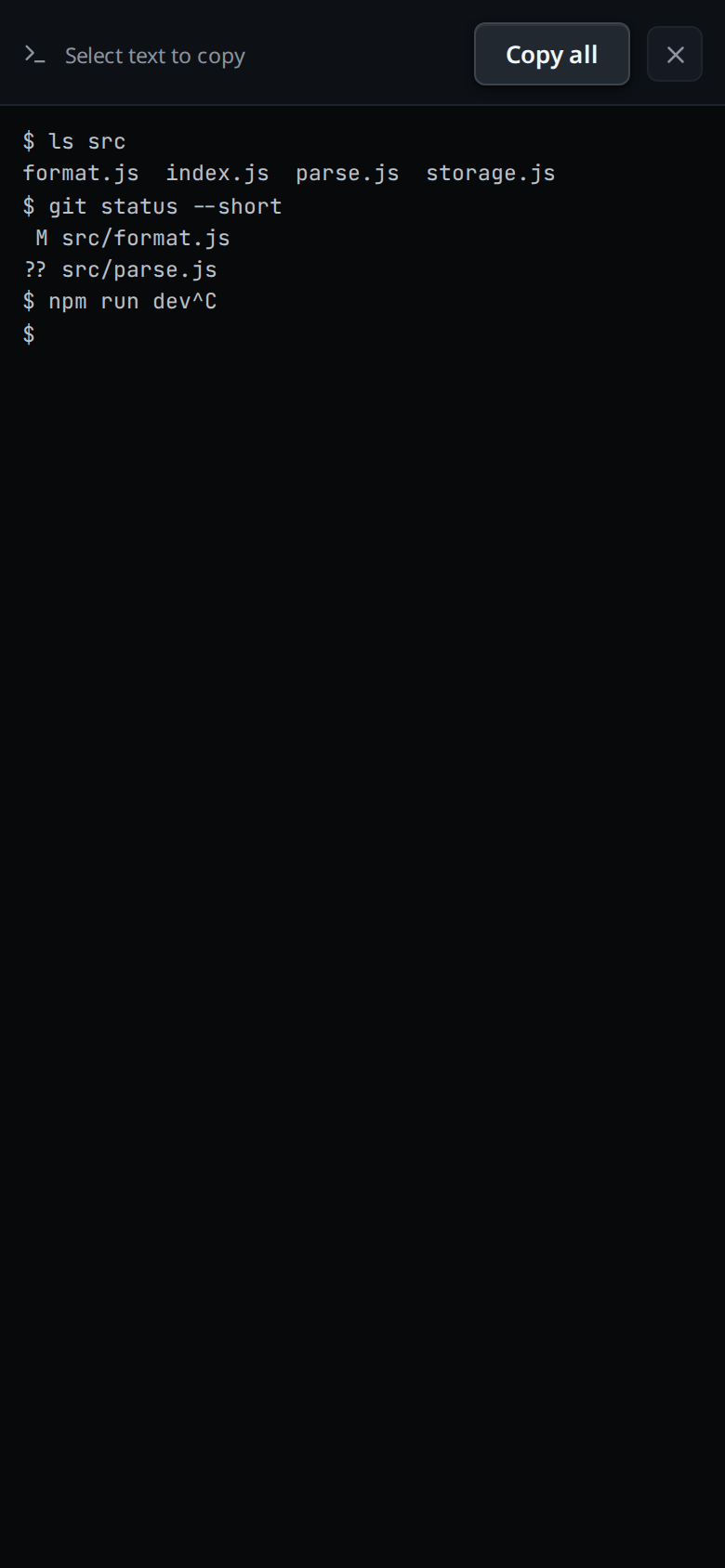
Tap a URL or a
host:portin the output. On a phone a card titledLink(#term-link) offers Copy (#term-link-copy) and Open (#term-link-open). On a desktop, Ctrl-click it (Cmd-click on a Mac) to open it in a new browser tab; hovering it saysFollow link (ctrl + click).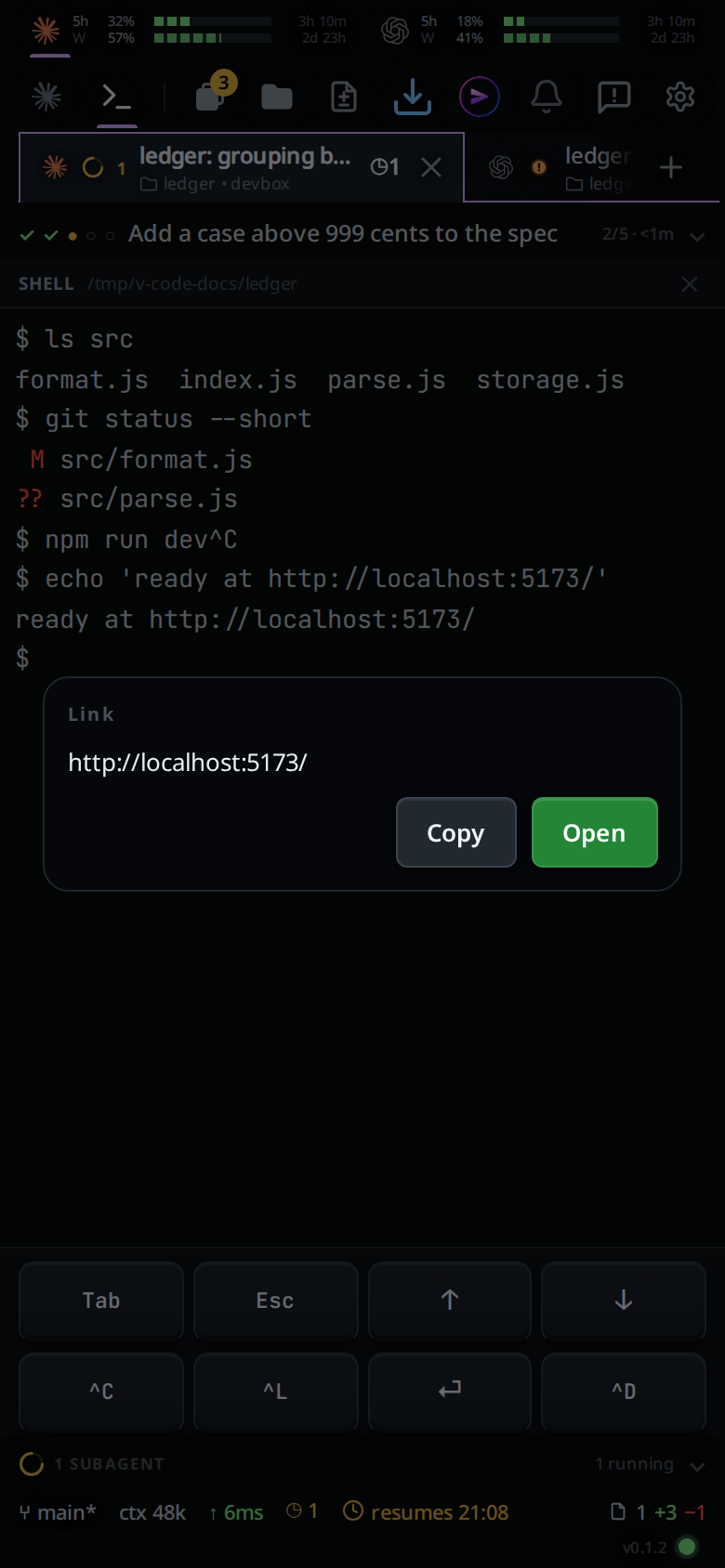
On a phone, swipe sideways on the terminal to move to the tab beside this one, as on the transcript. Shell mode stays with the tab you set it on: the tab you move to opens on its agent, unless you put that tab in Shell too. Swipe back and this tab is still in its shell. A tab in Shell slides in as its shell as you last saw it on this screen (an empty terminal if you have not opened it here yet), and its live terminal takes over when the swipe lands.
Tap Agent in the same strip, the ✕ in the terminal's header (
#panel-close, "Back to the agent"), or the phone's back button, to put this tab back on the agent.
What you see
The header says
SHELL(#panel-title) and, beside it, the tab's folder (#panel-sub), with your home folder written~.
The terminal, in the app's colours: what the shell printed, with its colours, and a block cursor. Programs that take over the whole screen (
vim,htop,less,lazygit) draw as they would in any terminal.When it opens, the last 2000 lines of the tab's shell are already there, so output from before you looked is in the scrollback. New output then arrives as the shell prints it.
While the terminal code loads the first time:
starting a shell….With no tmux on the machine, a yellow line in the terminal:
tmux is not installed, so there is no shell here. Install it with: <command>, where the command is the one for your system. Another tmux failure readsshell unavailable: <the error>.If the shell exits (
exit, or^Dat an empty prompt), a new one starts in the tab's folder.A copy shows the toast
copied, a link copied from the cardlink copied, and a refused clipboardcopy blocked by the browser.The jump-to-latest pill (
#tobottom) is hidden while the terminal is showing.
Options and settings
| Option | Default | What it changes |
|---|---|---|
VCODE_SHELL_SESSION |
v-code-shell (v-code-shell-prod in the unit) |
Name of the tmux session the tabs' windows live in |
VCODE_SHELL_COLS |
120 |
Width the session is created at; a tab's window then takes the terminal's width |
VCODE_SHELL_ROWS |
40 |
Height the session is created at; a tab's window then takes the terminal's height |
Limits and known gaps
- The composer is hidden in Shell mode, and with it dictation, attachments and the slash menu.
- Shell mode is per tab, on this device only. Selecting another tab or swiping to it shows that tab in its own mode. The modes survive a reload the app makes itself, such as an update, but not one you make yourself.
- The tab's shell has one size. Each device that opens it sizes it to its own screen, so a phone and a desktop on the same tab take turns: the last one to open or resize wins, and the other sees lines wrapped for a different width.
- The 2000 lines loaded on open are what tmux kept. The terminal holds up to 5000 lines as output arrives; older lines drop off the top.
- A phone has no touch selection inside the terminal itself. The long press and its sheet are the way to copy.
- Tapping inside the line to move the caret needs bash or zsh and a shell window opened by this version. Elsewhere your keys still reach the shell; see edit-the-command-line.
- Without tmux installed there is no terminal, and the screen says so.
- On Windows the tab's shell is PowerShell: PowerShell 7 (
pwsh) when it is installed, else Windows PowerShell. Tapping inside the line to move the caret does not work there, and the scrollback on open is the shell's last 1 MB of output rather than 2000 lines. The shells end when VCode restarts. - There is no shell segment in the status bar: the mode strip, Ctrl+
with a keyboard, or a pane header's terminal button on a wide screen, is the way in. A!` line does not come here. It runs on its own and answers in the transcript (see bang-command).
Related
- edit-the-command-line: tap, select and paste in the line you are typing
- shell-keys:
^C,Taband the arrows from the keypad - bang-command: run one command without leaving the agent
- run-a-command-from-a-code-block: run a bash block from a reply with one tap
- terminal-output-and-links: links in the transcript's command output
- agent-or-shell-mode: the chips that switch between the two
- thread-working-folder: the folder each shell starts in
- floating-chrome: the slot the terminal takes over
- wide-layout: where the shell sits when there is more than one pane
- swipe-between-tabs: the same swipe on the transcript
- environment-variables:
VCODE_SHELL_SESSIONand the session size - agent-commander: the one assistant behind the top bar's VCode icon, in a popup with no shell