
Switch tabs from the strip
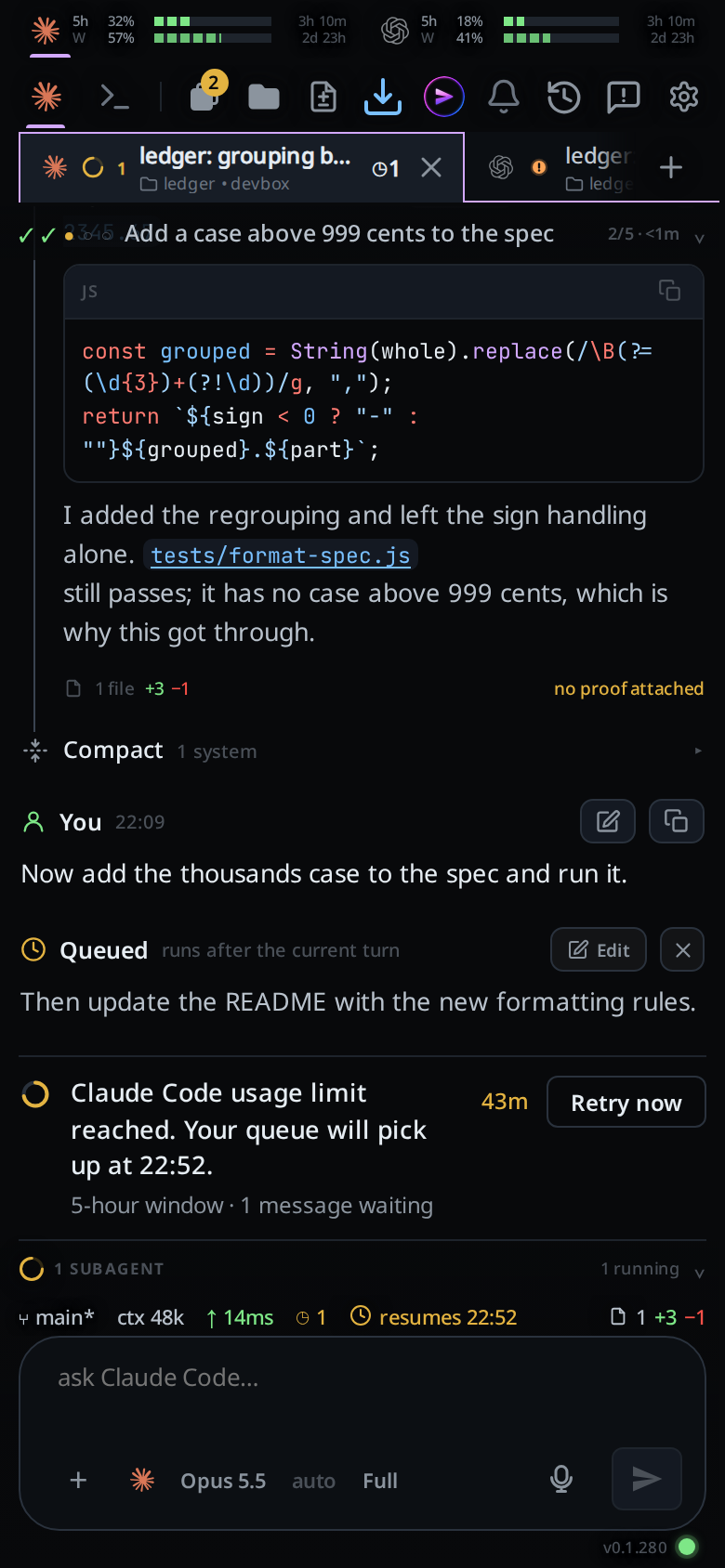
The row of tabs across the top (#tabstrip) is every open thread of the active
project. Tap one to go
to it; each tab says which agent runs it, what it is doing, and how many
messages are waiting. Under each name is the tab's folder, after a small folder
mark and in a darker grey than the name, then · and the machine it runs on
(.fmachine). A long folder is cut before the machine name is.
Why you would use it
It is the fastest way to move between the threads of one project, and it shows all of them at once while you work. The badges are what let you leave a tab running and come back when it has something to say.
How to use it
- Tap a tab to select it. The transcript, composer, plan strip and file explorer all follow. A tab you just left, or on a phone one beside the tab you are in, shows its transcript in the same frame the tab lights; the box then sends anything newer. Any other tab shows its rows once this device has read its saved copy, or, with no saved copy, once the box answers.
 2. Swipe the strip sideways when there are more tabs than fit. With a mouse,
turn the wheel over the strip: a vertical wheel scrolls it sideways.
After three seconds without interacting with the strip, it slides the selected
tab fully into view over one second. Scrolling, dragging, tapping, selecting a
tab or using the keyboard in the strip restarts the wait and stops a return
in progress. A held drag waits until release. This works on phones and in
each desktop pane. With reduced motion enabled, the return is immediate after
the same wait. A selected tab already fully visible stays where it is.
If a generated or renamed title widens a tab and hides the selected tab,
the same three-second wait starts again, even without touching the strip.
3. Tap the plus after the last tab (
2. Swipe the strip sideways when there are more tabs than fit. With a mouse,
turn the wheel over the strip: a vertical wheel scrolls it sideways.
After three seconds without interacting with the strip, it slides the selected
tab fully into view over one second. Scrolling, dragging, tapping, selecting a
tab or using the keyboard in the strip restarts the wait and stops a return
in progress. A held drag waits until release. This works on phones and in
each desktop pane. With reduced motion enabled, the return is immediate after
the same wait. A selected tab already fully visible stays where it is.
If a generated or renamed title widens a tab and hides the selected tab,
the same three-second wait starts again, even without touching the strip.
3. Tap the plus after the last tab (#new-tab) to start a tab, the same thing
Ctrl+T does. In a project the tab opens at once in the project's folder; in
Worktop the plus opens the new-thread card. Renaming, moving,
reordering and closing are in the Threads sheet;
reopening a closed tab is on the
resume screen,
which /resume opens.
The phone strip uses the same desktop tab shape: tabs meet on a hairline, have square corners, and fill the lane's height. The selected tab is filled, with a thin coloured edge across its top and down both sides. Its bottom stays open; the same colour runs along the strip under the other tabs.
On a window at least 760px wide #tabstrip is not shown at all: every pane has
its own strip in its header (.pane-tabs) holding the tabs that pane keeps. They
keep the desktop tab bar shape: a longer name on each tab, square corners
and the header's full height, one tab meeting the next on a hairline, the first
of them flush with the pane's own edge, the tab you are in filled with a thin
coloured top edge and coloured sides (the first tab's left edge sits beside
the pane's own line), and the strip's colour rail runs under the other tabs.
The selected tab's bottom stays open. There is also a highlight under the
pointer. On desktop every tab has a close cross (.tabclose); the pointer
brightens the one it is over. See
close-and-reopen-tabs. The pane header is pictured in
wide-layout.
What you see
Each tab carries, left to right:
- the agent's brand mark (Claude, Codex or OpenCode)
- a status mark, whose shape says the state: a grey ring for
idle, an amber dot forworking, an orange disc with!forwaiting(the agent stopped for you), a green check forfinished(filled until you open the tab, hollow after, gone at the next message; see tab-status), a red cross forfailedandexited. The amber dot sits in a faint amber ring. With background agents running, an idle tab shows an amber arc spinning on that ring, and a working tab the spinning arc with the dot inside. With a shell command Claude sent to the background still running, an idle tab shows a blue arc spinning around a>. Under reduced motion nothing spins or pulses. A turn claude starts for itself (a background agent finishing, a wakeup firing) wears the working dot like any other (activity-line) - the number of background agents running in that tab, when there are any
- the tab's name: its title, else the agent's name, else
thread ◷Nwhen N messages are queued in that tab, counting both the server's queue (manage-queued-messages) and anything still in this device's offline outbox (queue-a-message-offline)- a thin coloured top edge and coloured sides on the selected tab, with an open bottom; the shared rail under the other tabs uses the selected tab's colour, or violet when it has none
Long-pressing the tab shows its tooltip: <agent> · <status> · <folder>, and
with background agents the status reads idle · 2 agents running.
The strip fades at its right edge only while there is more to scroll to. Selecting a tab from the drawer or the sheet scrolls the strip to centre it.
The strip moves rather than jumps. When you select a tab, the fill and its top and side edges slide over from the tab you left to the one you picked in about a fifth of a second, and the strip glides to centre it. The shared bottom rail continues beneath the other tabs. Selecting a tab does not change its width: every tab on a phone carries its close cross, and the selected name is drawn heavier without taking more room. A new tab grows in from nothing and the tabs after it make room; a closed tab folds away where it stood and its neighbours close the gap. Each pane's strip on a wide window does the same. With reduced motion turned on in your system settings, all of this happens at once.
On a wide window with a mouse or trackpad, the composer takes the caret as
soon as you pick a tab, from the strip, the drawer, the sheet or Ctrl+PageDown;
a tab is for typing into, and this saves the click into the box. It is not
taken from a field you are typing in, or while a sheet, popup or drawer is over
the screen. A phone, and a touchscreen tablet at that width, are left alone: the
focus there would raise the soft keyboard over the transcript you just tapped to
see.
On a wide window a tab you have clicked has focus, and Delete or Backspace
then closes it, the same as its cross.
To the right of the plus sits the connection dot (#link-dot); offline it turns
and reads OFFLINE. See
live-updates-and-reconnect.
Limits and known gaps
- The strip has no project markers and never shows another project's tabs. Switch project in the tab bar.
- The strip does not re-sort itself. A tab stays where it is when its agent speaks; order is yours and is changed by dragging, in the strip, the drawer or the Threads sheet.
- Threads whose agent has been retired are hidden from the strip entirely. Their
logs stay on disk under
VCODE_STATE. - The strip hides its scrollbar, so the only hint that there is more to reach is the fade at the right edge.
- On a phone only the tab you are in shows a close cross. Select a tab first to close it from the strip, or close it from the drawer or the Threads sheet.
- A wheel turned over a strip that already fits, a sideways wheel from a
trackpad, and a wheel with
Ctrlheld are left to the browser.
Related
- navigation-and-commands: every gesture and key, phone and desktop
- swipe-between-tabs: the same move with a thumb
- tab-drawer: the list version of the strip, with every project
- projects: which tabs the strip shows
- tab-status: which tabs finished and which wait on you
- threads-sheet: the full manager, behind All threads in the new-thread card
- reorder-tabs: moving a tab along the strip
- subagents-strip: the background agents the ring and the count report
- the-three-agents: the brand marks on the tabs
- status-bar: the same state, in words
- close-and-reopen-tabs: the cross on a tab, and what a close does to the selection
- wide-layout: the strip as a desktop tab bar
- type-to-start-a-message: what typing does when the box has not been given the caret
- start-a-thread: which end of the strip a new tab opens at
- split-panes: a strip per pane, and dragging a tab between them
- pin-snooze-done: pinned tabs lead the strip; done ones leave it