
The Threads sheet
The full tab manager (#sessions), behind All threads in the new-thread card.
It starts threads, lists the open ones with their status, and holds what the
drawer leaves out: folder moves, and the way into the resume screen.
Why you would use it
The drawer is for picking a tab; this is for administering them. It is the only place that shows what every tab is doing at once and moves a tab whose folder is gone. Its Resume… button finds a closed tab or a session started in a terminal.
How to use it
Open it any of these ways:
- All threads (
#newthread-manage) in the header of the new-thread card, which the plus opens. The card closes and the sheet takes its place. On a wide screen it covers the whole window, the tab list and the Changes panel included, until you close it.
The plus itself does not open the sheet; it starts a thread; see start-a-thread.
- All threads (
Use the section you need:
- NEW THREAD: the agent and folder form; see start-a-thread
- the open tabs (
#thread-list): tap a row to go to that tab - Resume… (
#sessions-resume) in the head: opens the resume screen, which finds closed tabs and sessions started in a terminal; see resume-a-session-from-disk
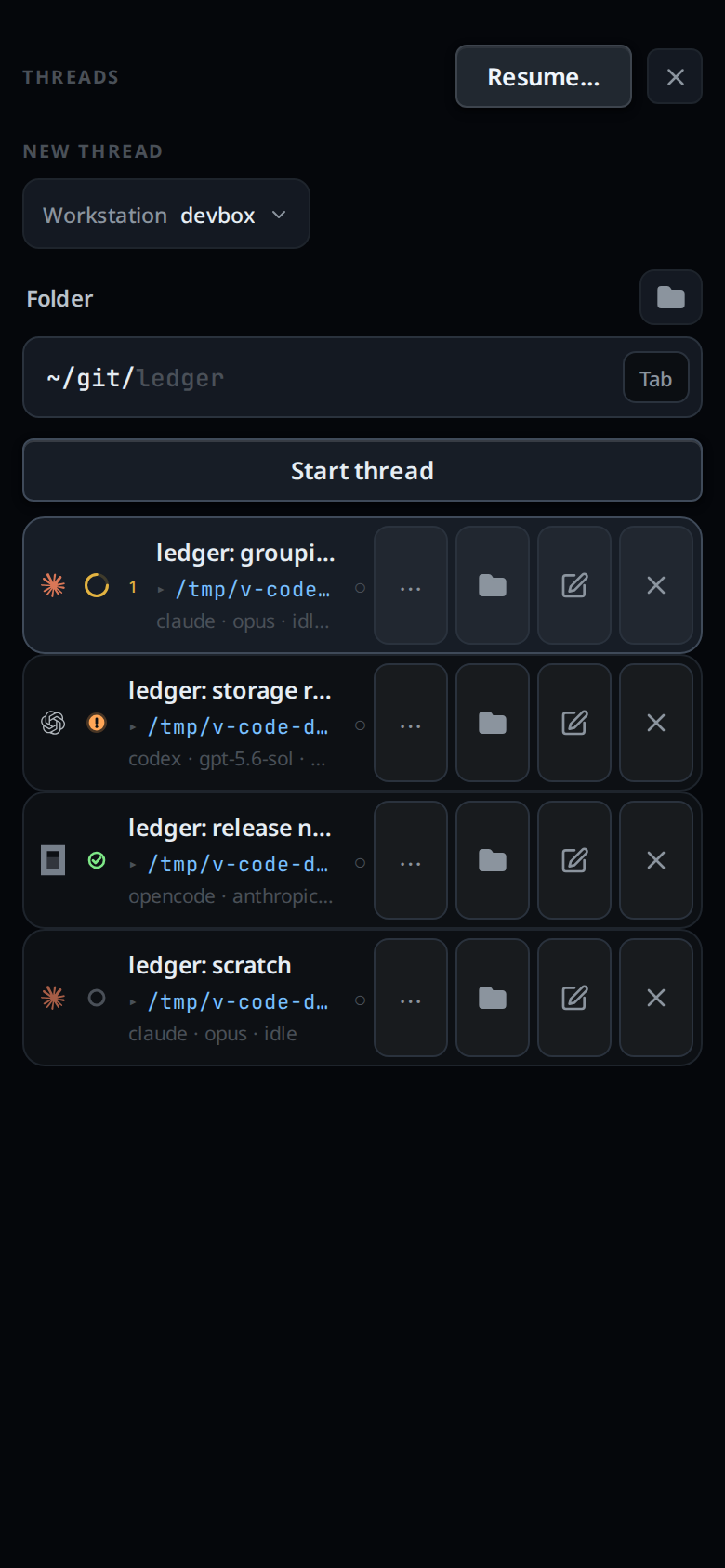
- On any open row, hold and drag it to move it, use the folder button to move the tab to another directory, the pencil to rename it, or the cross to close it.
- Tap the cross in the header (
#sessions-close), or press the phone's back button, to close the sheet.
What you see
Each open row has three lines: the tab's name, its folder with a ▸ in front
written ~-short, and a meta line of <agent> · <model> · <status>, with
N queued appended when messages are waiting. On the right is a status glyph:
● working, ! waiting, ○ idle, ✕ failed or exited, ✓ done. A coloured
tab wears its colour as the row's border.
Rows move by dragging: press and hold one, then drag it up or down. There are no up and down buttons.
Limits and known gaps
- Closed tabs are not listed here. Find them on the resume screen.
- While a name or folder editor is open on a row, the whole list stops repainting, so changes from other devices appear once the edit finishes. Reopening the sheet always starts from a clean list.
- A row's drag sends the whole strip, so a stale order is refused rather than merged.
- Model is shown only when the tab has one set.
Related
- start-a-thread: the form at the top
- close-and-reopen-tabs: closing a tab from a row
- thread-working-folder: the folder button
- tab-drawer: the lighter list
- reorder-tabs: the row drag
- rename-a-tab: the pencil on a row
- resume-a-session-from-disk: the screen Resume… opens
- status-bar: the same status, for the tab you are in
- pin-snooze-done: the
⋯menu on a row